


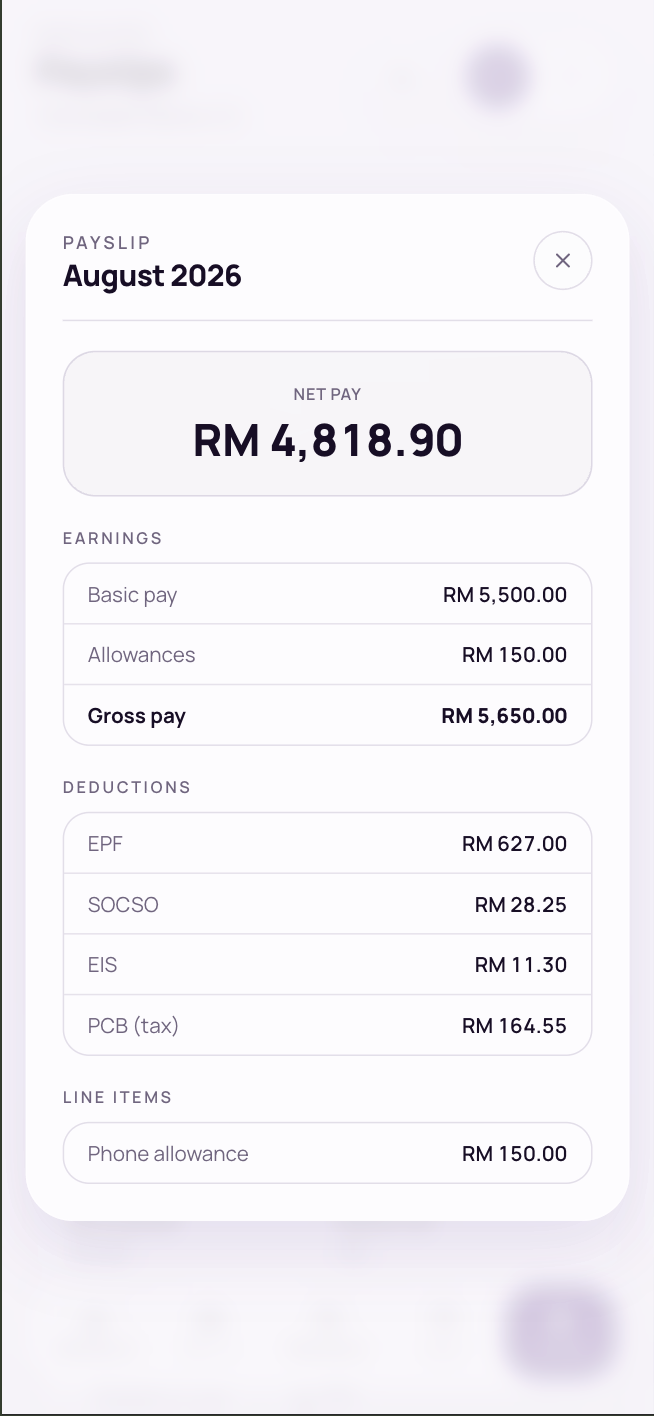
The Payslips tab lists your payslips once payroll for the month is finalised, with net pay, gross, EPF, SOCSO, EIS and PCB on each. It opens on your latest year.
Your payslips
- Year tabs: if you have payslips in more than one year, tap a year above the list to see that year’s payslips.
- View breakdown: earnings, deductions and every line item. Your earnings are shown in full; anything your company keeps from your pay, such as a loan repayment, is listed under Deductions.
- PDF: download the payslip.
- TP1: download your Borang PCB/TP1, the tax reliefs you’ve claimed for that month.
Your latest payslip is also on the Dashboard. Your company may email it to you too.
Your Form EA
Form EA is your yearly statement of pay, for filing your income tax return. Above your payslips, the Form EA card has one row for each year you were paid.
When every month of that year’s payroll has been approved, the row shows Download EA. Until then, it tells you how many months are done, for example 9 of 12. You can still see the card after you’ve left the company.
Common questions
Where’s my payslip?
Payslips appear once payroll for that month is finalised. For an older payslip, tap that year’s tab above the list. If it’s past payday and it isn’t there, ask HR.
Where’s my EA form?
On the Payslips tab, in the Form EA card. It can be downloaded once that year’s payroll is approved through December. If it’s past February and it still isn’t ready, ask HR.


