


Change one person’s salary
- Open the person’s Employment tab, change the salary and save.
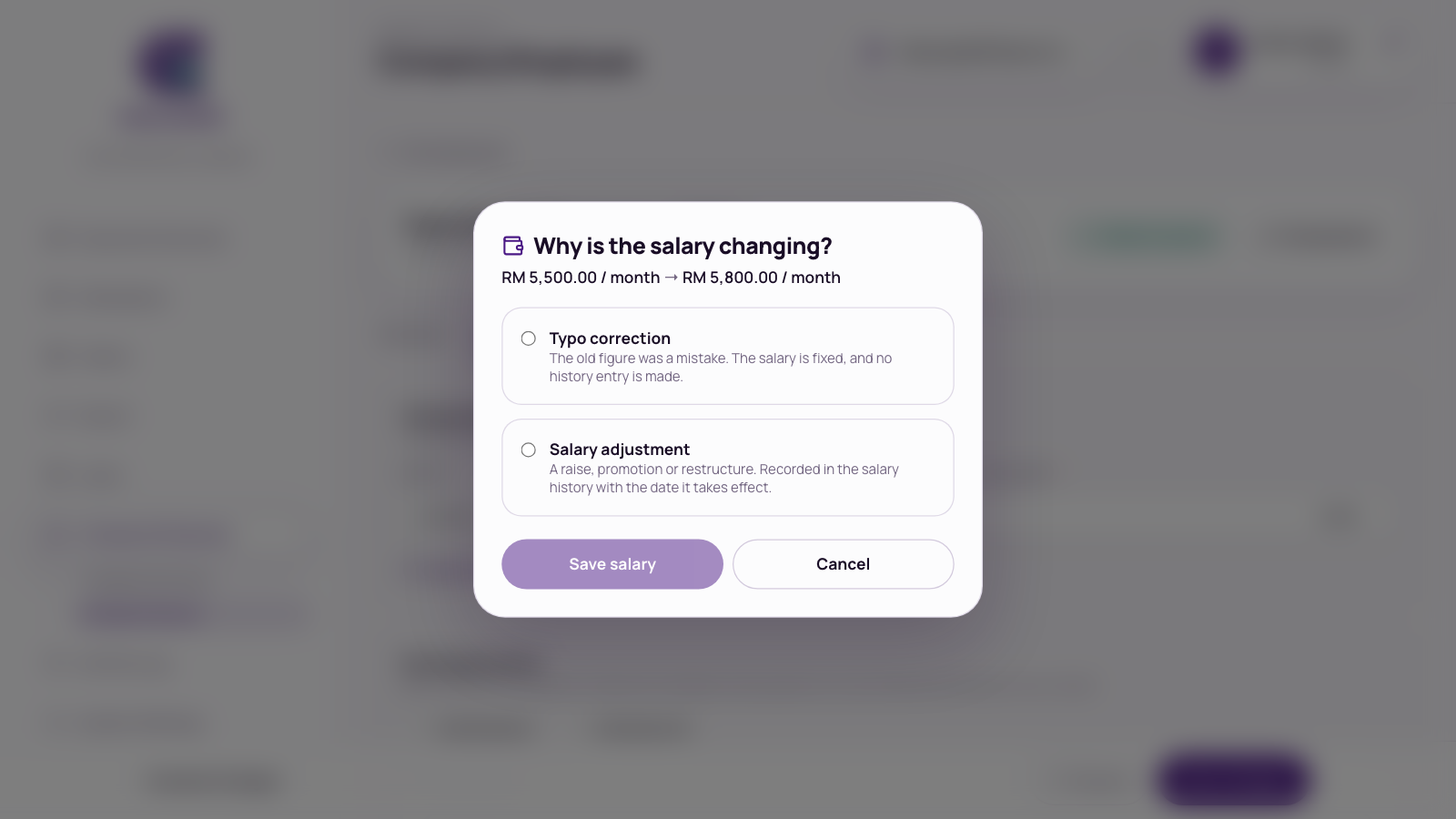
- AltomateHR asks Why is the salary changing?
- Typo correction: the old figure was a mistake. It’s fixed and nothing is added to the history.
- Salary adjustment: a raise, promotion or restructure. Pick the Effective from date (today or earlier), a Reason and optional notes, then press Save salary.
Salary history, under the salary, lists every real change with its date, reason and the old and new figure. For a pay round across many people, see How to Add and Manage Employees.
Keep foreign workers’ work permits on file
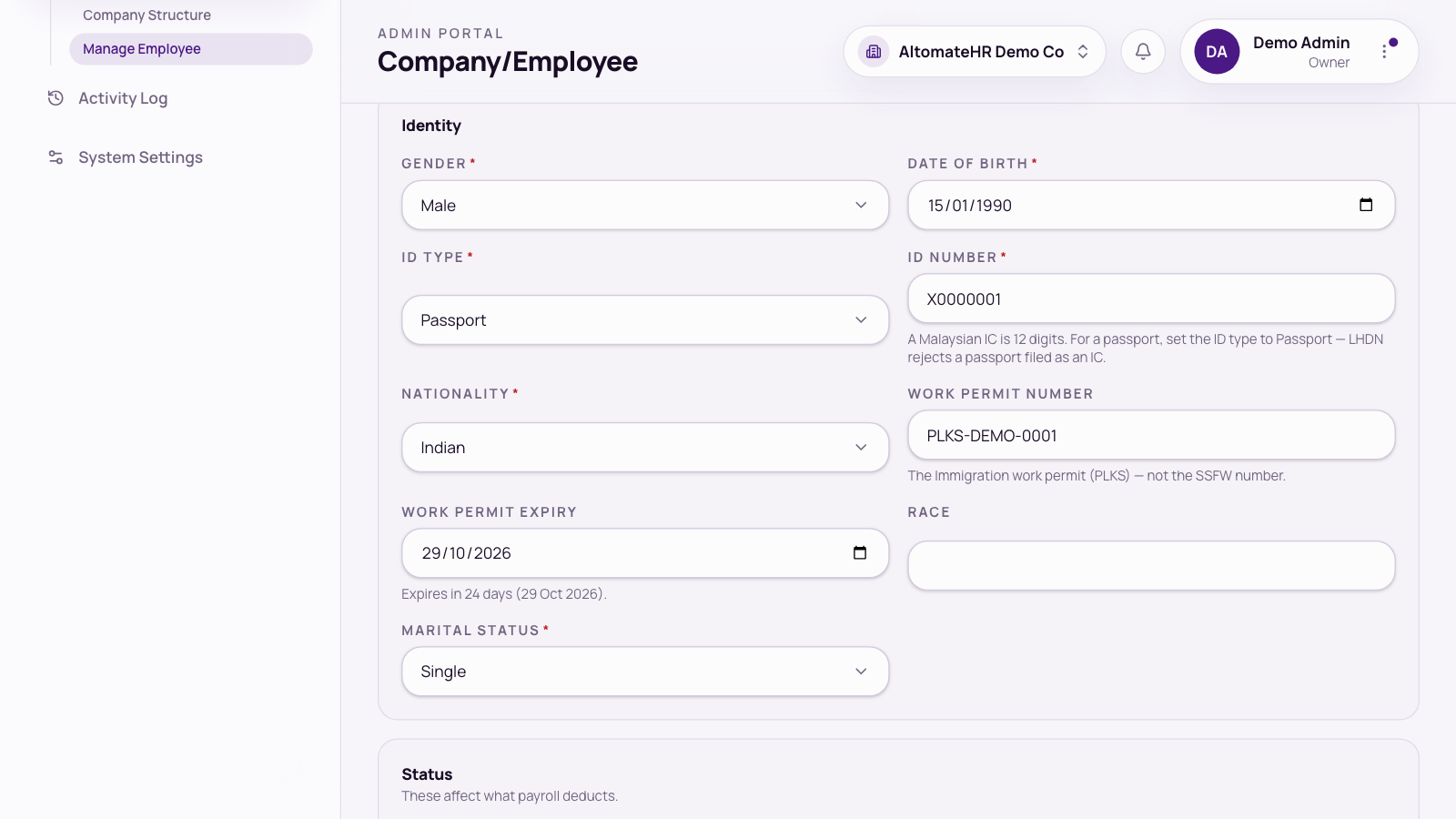
- Open the person, go to Personal and, under Identity, pick their Nationality. The permit fields only appear for someone who isn’t Malaysian and has no PR.
- Enter the Work permit number (the Immigration work permit, not the SSFW number) and the Work permit expiry date, then save.
- A line under the date shows where it stands: valid until a date, expires in a number of days, expires today, or expired.
Once a permit has expired or is within 60 days of expiring, the person is listed on the Work permits card of the Executive Overview. The import spreadsheet has Work Permit No and Work Permit Expiry columns if you want to fill in many at once.
When someone leaves
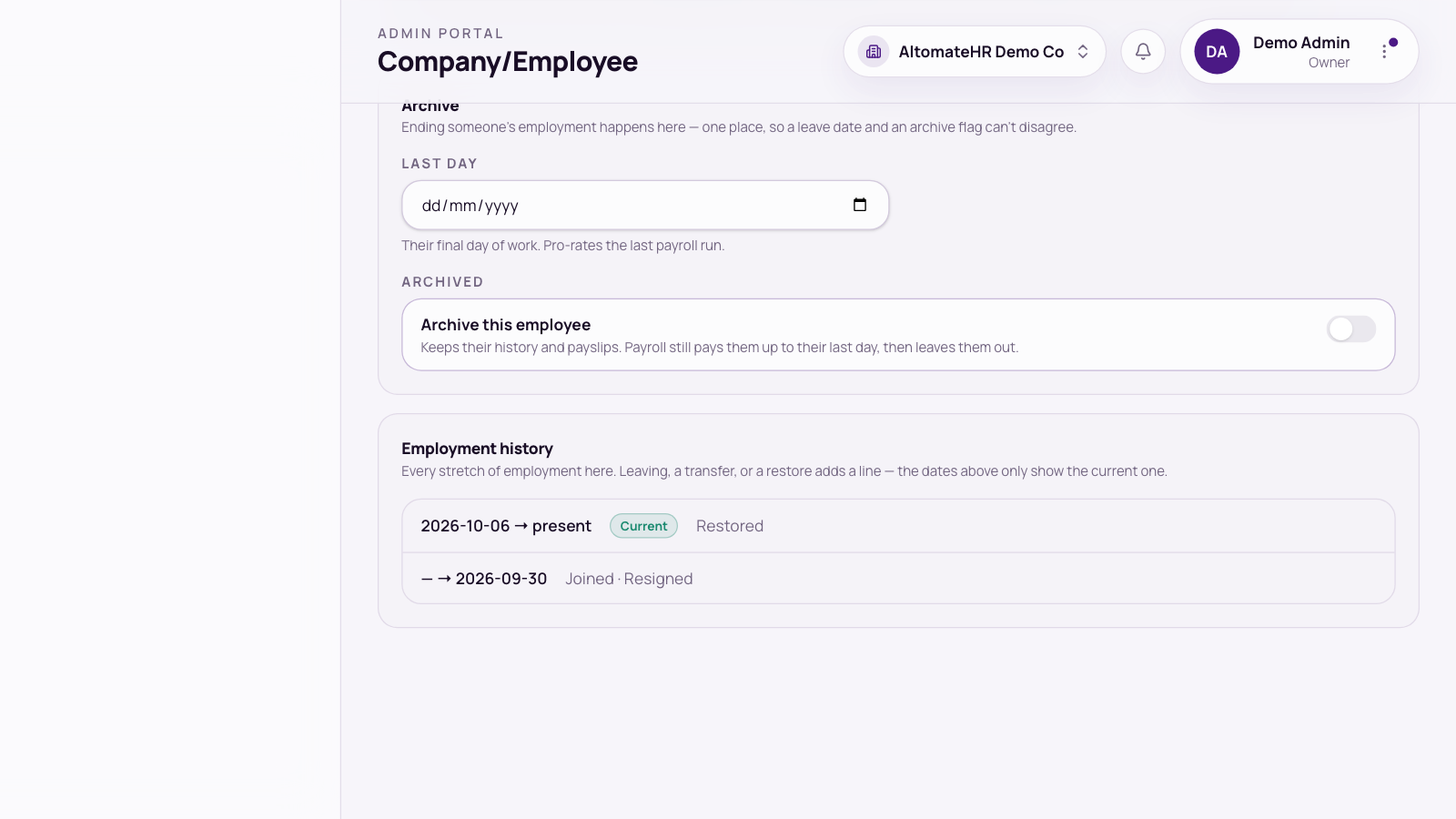
Don’t delete them. On the Employment tab, turn on Archive this employee and set their last day and reason. Payroll still pays them up to their last day, then leaves them out of future runs. Their payslips and forms are kept.
Employment history, at the bottom of the tab, lists every period of employment at this company and why it started or ended.
For LHDN forms for leavers (CP22A and CP21), see How to Prepare EA, Form E, CP8D and Other LHDN Forms.
Move someone to another company you manage
If you look after more than one company, Transfer and Duplicate buttons appear in the employee’s header (for staff, not owners or admins). Archived people must be restored first.
Transfer: they leave this company and start at the other one.
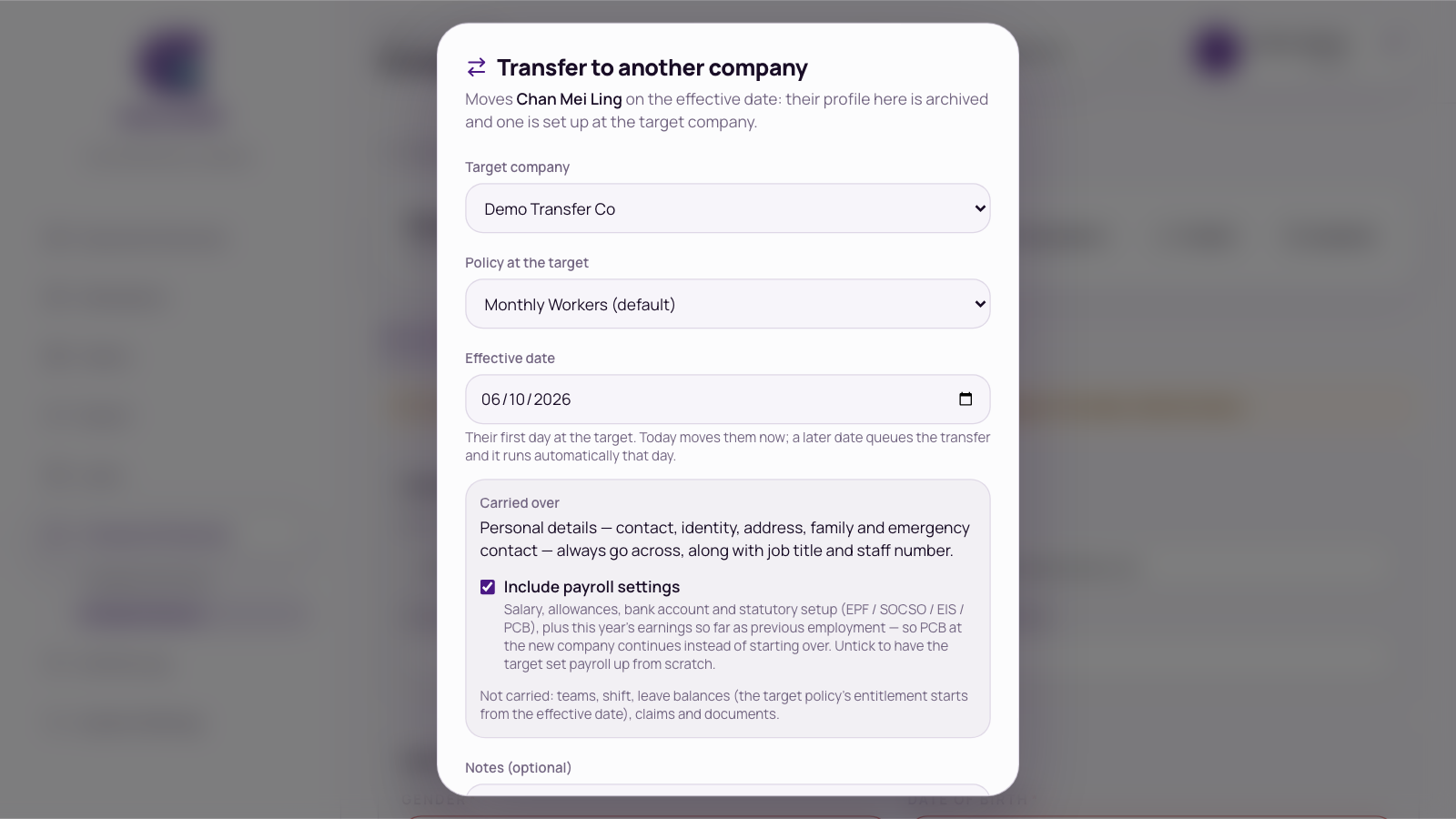
- Pick the Target company, the Policy there and the Effective date (their first day). Today moves them straight away; a later date schedules the transfer.
- Personal details, job title and staff number always move across. Tick Include payroll settings to also copy salary, allowances, bank and statutory details and this year’s earnings, so PCB at the new company carries on correctly. Teams, shift, leave balances, claims and documents don’t move.
- Press Transfer now or Schedule transfer.
At the old company they’re archived with the day before as their last day. While a transfer is scheduled, the record shows a banner; press Cancel transfer to change it.
Duplicate: they keep working here and are also added to the other company, with the same login. Pick the company, policy and join date, then press Add to company, and set their salary at the other company.
Transferring in the middle of a month: Both companies pay the person for part of that month. Approve and file that month’s payroll at the old company first. Then, at the new company, press Re-run payroll on that month’s draft so the person is added with the right year-to-date figures, then send it for approval and approve it.


