


Go to Documents. Write each letter once as a template, then produce a PDF for any employee with their details filled in. Letters are for admins only: employees never see them in their app.
Each letter prints your company logo and, if you choose, a saved signature. Add these under System Settings, then Organization. See How to Set Up Your Company.
Start a template
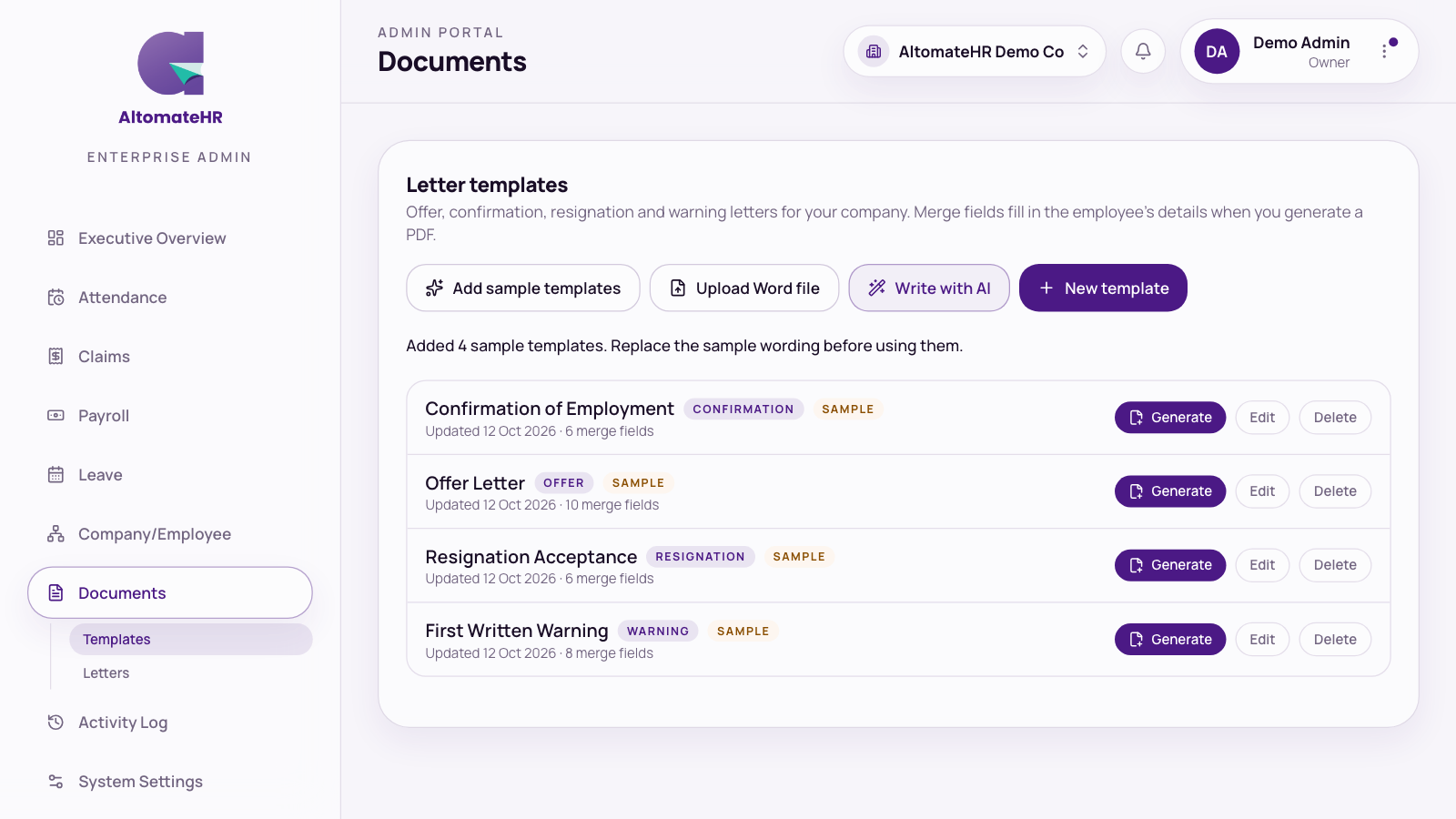
Open Documents, then Templates, and choose how to start:
- Add sample templates: four ready-made letters (Offer Letter, Confirmation of Employment, Resignation Acceptance and First Written Warning). Replace the sample wording with your own before you use them.
- New template: write one from scratch.
- Upload Word file: start from a letter you already have (.docx, .txt or .md, up to 5 MB).
- Write with AI: describe the letter and AI drafts it for you.
Write a template
- Give it a Name and a Category (Offer, Confirmation, Promotion, Resignation, Termination, Warning or Other).
- Type the letter in the Write box. Start a line with # for a heading, wrap words in two stars for bold, and start a line with – for a bullet. Switch to Preview to check it. The PDF adds your letterhead, the date and the signature block, so don’t type those.
- Add merge fields where details go. Click where you want a detail, then click a field such as Employee name, Job title, Monthly salary or Company name. It’s filled in from the records when the letter is made.
- For details that aren’t on any record, such as an offer expiry date, add a field under Typed for each letter. You’ll be asked for it each time.
- Optionally choose a Default signature.
- Press Preview PDF to check, then Save template.
Start from a Word file
Upload your file and it opens in the editor for you to check. A yellow box lists anything that didn’t come across, such as pictures, text boxes, headers and footers. Any placeholder that isn’t a merge field is listed under Map these placeholders to merge fields: pick the matching field for each. Delete any date, letterhead or signature lines from your file, because the PDF adds its own.
Write a template with AI
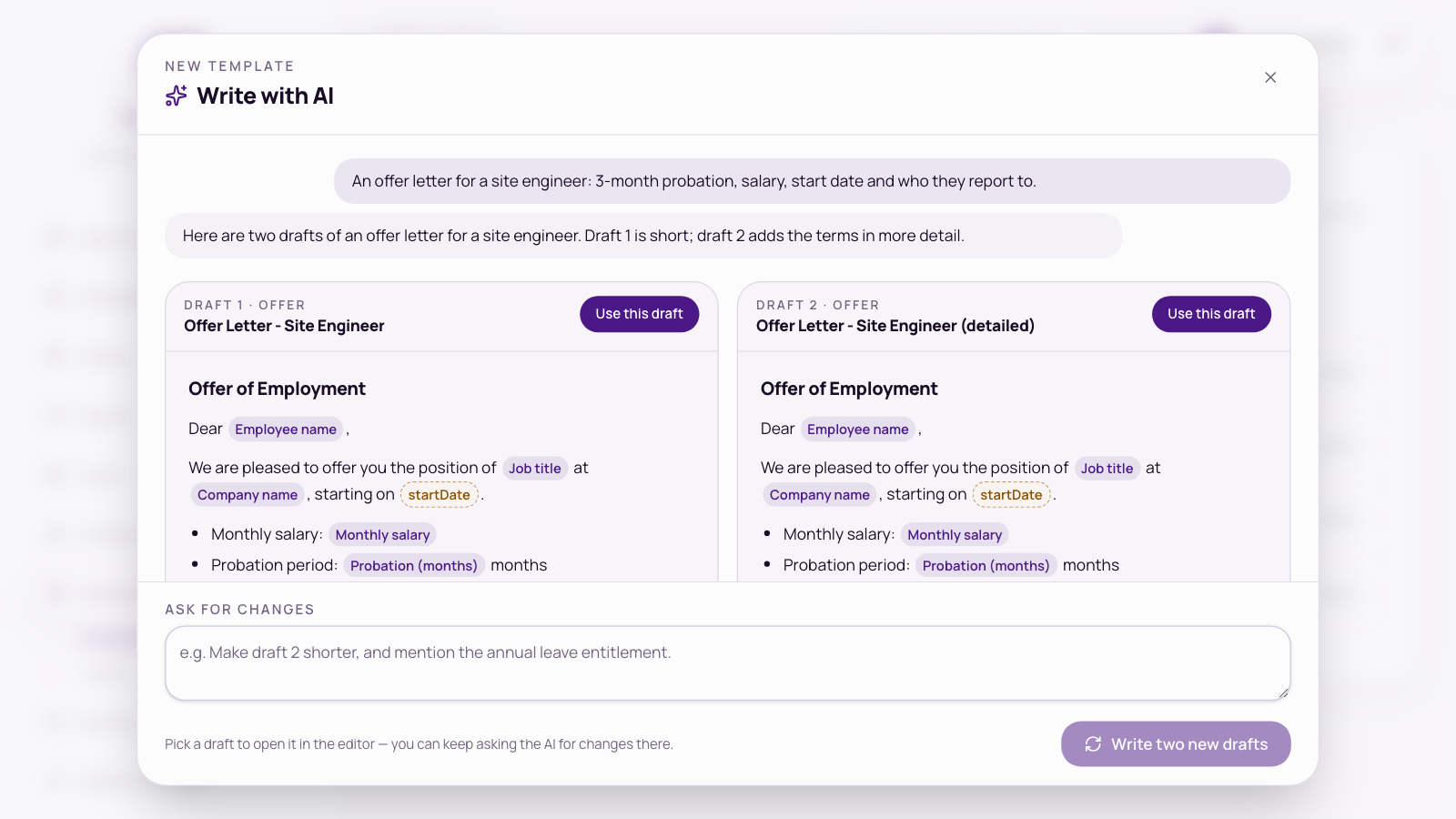
- Press Write with AI and describe the letter, in English or Bahasa Melayu. For example: an offer letter for a site engineer with 3-month probation, salary, start date and who they report to.
- Press Write two drafts. Two drafts appear side by side. Type under Ask for changes to get new versions.
- Press Use this draft on the one you like. It opens in the editor, unsaved.
- Read it through and adjust it to your company’s policies, then press Save template.
The AI only sees what you type and the list of merge field names, never an employee’s details. AI drafts are not legal advice.
In the editor, the Ask AI panel can also rewrite an existing template (for example, make it more formal or translate it to Bahasa Melayu). Undo last change brings back the previous text.
Make a letter for an employee
- Press Generate next to a template, or Generate letter on an employee’s Letters card.
- Pick the template, the employee and the signature (or No signature (sign by hand)).
- Anything the letter needs that isn’t on file is tagged Not on file. Fill it in, or tick Leave blank on this letter. For a missing ID number, address, job title, department, work location, probation or confirmation date, tick Also save to employee record to write it onto their record too (this needs Manage access on Employees, and only fills an empty field). Generate PDF stays off until every one is dealt with.
- Fill in the For this letter details. These are used on this letter only.
- Press Generate PDF. A copy is saved to the employee’s file unless you untick it.
Documents, then Letters, lists every letter kept, newest first.
Who can use it
Documents is a module in admin access. View lets an admin see and download templates and letters; Manage also lets them write templates and make or delete letters. Because a letter prints the employee’s record, they also need access to Employees.


