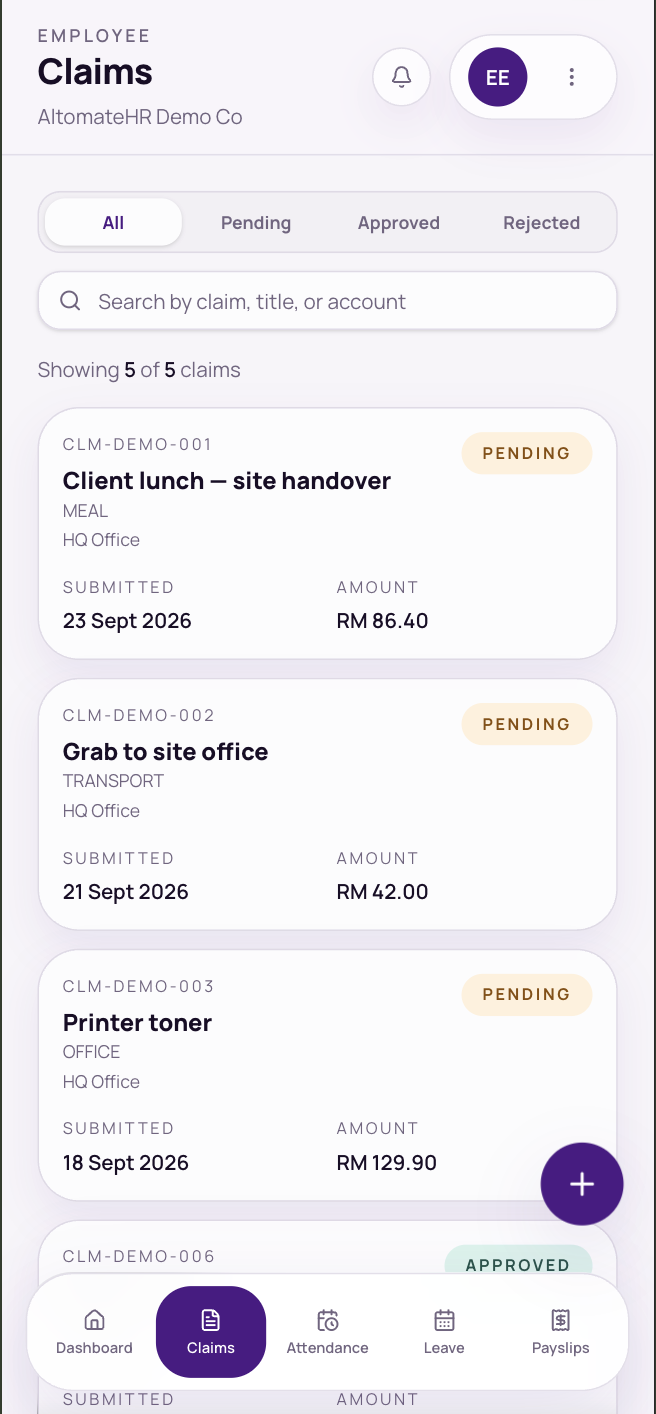

Go to Claims and tap +, or tap Submit new claim on the Dashboard.
Submit a claim
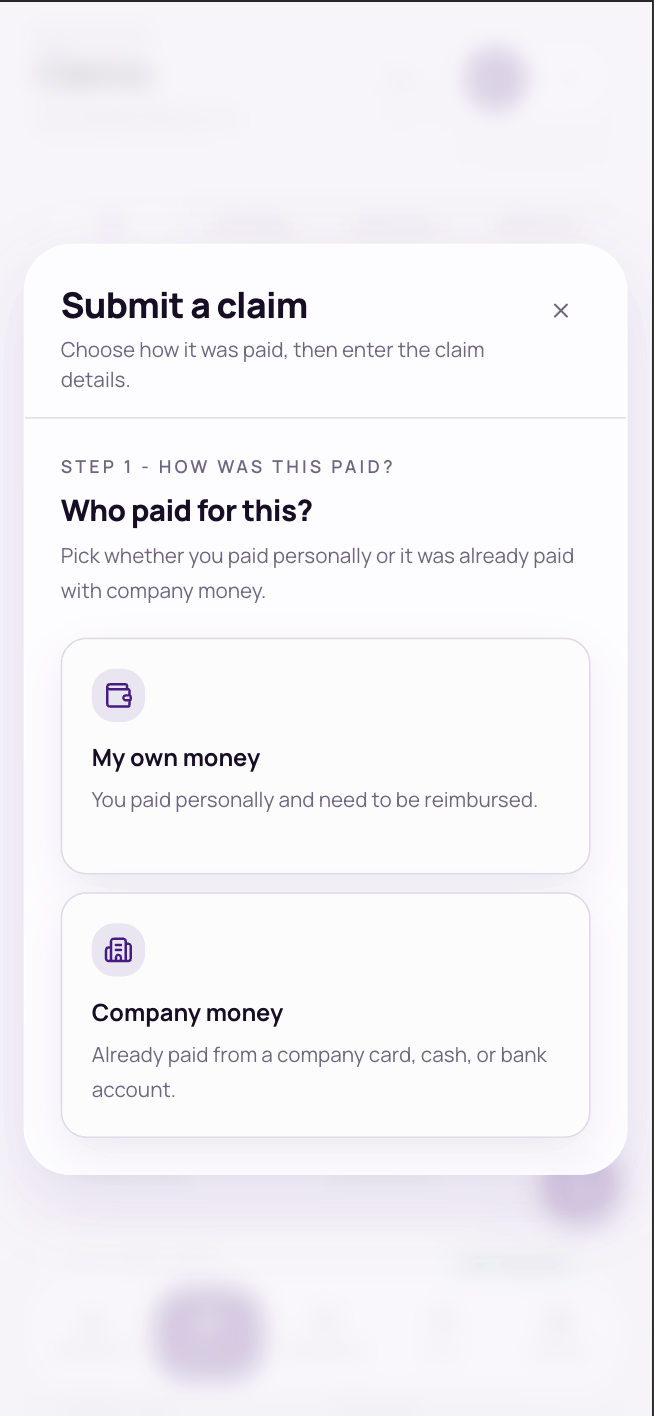
- Who paid? Choose My own money (you’ll be reimbursed) or Company money (a company card or account).
- What kind? Choose Expense claim or Mileage claim.
- Attach the main receipt. It’s optional, but a receipt makes the claim easier to approve. Choose a photo or PDF, then tap Read receipt & continue: the app reads the receipt and fills in the details for you. To type the details yourself, tap Skip AI and fill manually.
- Check the details, especially the amount, then tap Submit claim.
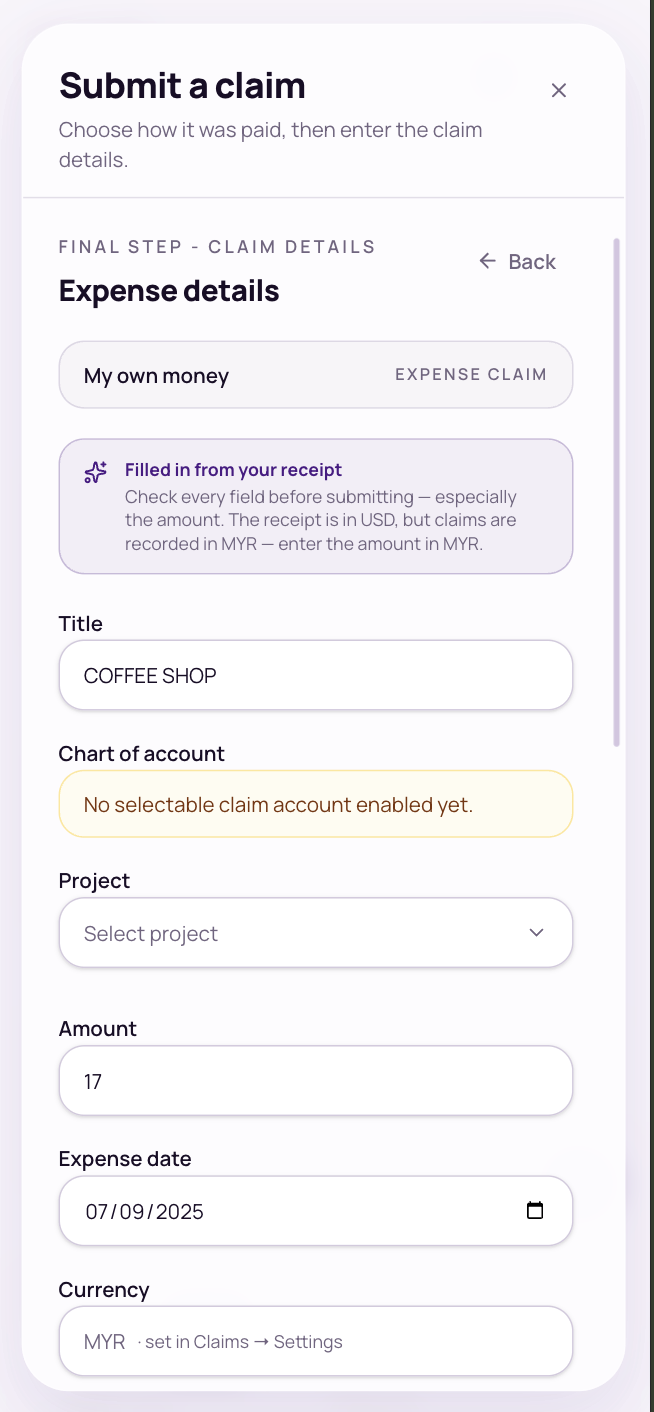
The fields worth getting right
- Chart of account: what the expense was for. Your company decides which ones you can pick.
- Project: the site or job it belongs to.
- Company bank account: for company money, which card or account paid.
- Spending at: the shop or supplier (required for company money).
- Supporting documents: anything else, like an invoice, up to 10 files. Tap a file to open it, or the ✕ to remove it.
To check or change the main receipt, tap it to open it, or tap Replace to swap in another file. The details you’ve typed stay as they are.
Mileage claims
Enter the distance, the date, and where you went from and to. The amount is worked out from your company’s mileage rate.
Over the limit: If a claim is over the spend limit for that account, you can still submit it. It’s flagged for your approver to look at.
Track your claims
Go to Claims, then My claims, and filter by Pending, Approved or Rejected.
- Open a claim to see its details, the receipt, and the reviewer’s note if it was rejected.
- While it’s pending, open it and tap Edit claim to change it or add more documents.
- The Dashboard shows what you’ve been reimbursed this year.