


Year-end forms for everyone
Go to Payroll, then Annual forms, and pick the filing year. Only approved pay runs count.
- Form EA (bulk): every employee’s EA in LHDN’s C.P.8A layout, one page each, to give to staff by 28 February.
- PCB 2(II) (bulk): each employee’s statement of PCB deducted, with the receipt numbers you saved each month. You can download this at any time.
- Form E + CP8D: the employer’s return and its employee list.
- LHDN e-CP8D upload: the employee file in LHDN’s current layout.
- CP8D converter: for a year you didn’t run in AltomateHR, type the figures in and download the upload files.
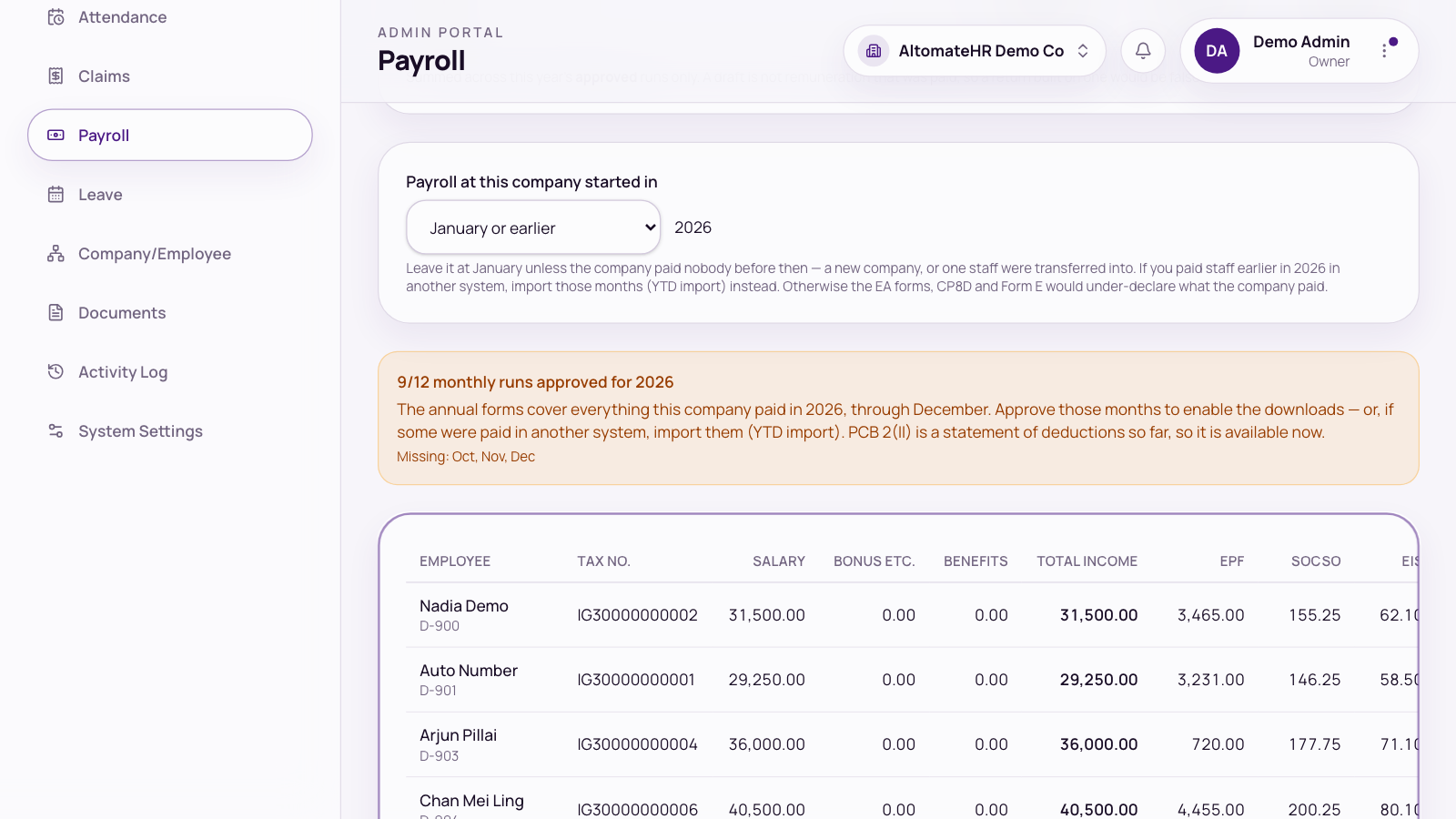
The EA, CP8D and Form E stay greyed out until every month they cover is approved. If the page shows something like 9/12 monthly runs approved, approve the months listed under Missing.
CP8D needs your LHDN employer number. Each employee’s status and contract end date come from their Employment tab; if left blank, they count as permanent with retirement at 60.
Forms for one employee
In an employee’s record, go to Documents, then LHDN Forms. Pick the year and download:
- PCB 2(II) and EA (statement of remuneration)
- CP22 (new employee)
- CP22A (leaving) and CP21 (leaving the country). These open as soon as you’ve set the person’s last day, and show a deadline badge counting down to 30 days before that date. The EA download stays greyed out until every month of that year is approved, including for someone who has left.
- PCB/TP3
Started using AltomateHR partway through the year
Bring in what’s already been paid so PCB carries on correctly instead of starting from zero.
- At the bottom of Payroll runs, open Import earlier payroll and download the template for the year.
- Fill in each month’s figures and press Preview. The preview checks every row against your employee list. It refuses the file if a row’s IC belongs to a different employee than the name on it, or if two rows match the same person. It warns you if an IC isn’t on file but the name matches. Importing a month that was imported before replaces that whole month, so include everyone’s rows for it: the preview names anyone who would lose figures.
- Import. Imported months are never recalculated, and they count toward everyone’s year-to-date.
If your company paid nobody before a certain month (a new company, for example), set Payroll at this company started in on the Annual forms page so the year-end forms only wait for the months from then. If you paid staff earlier in the year in another system, leave it at January and import those months instead, or the forms would under-declare what you paid.
For someone who joined from another employer this year, fill in Previous employment (TP3) on their Employment tab.


