


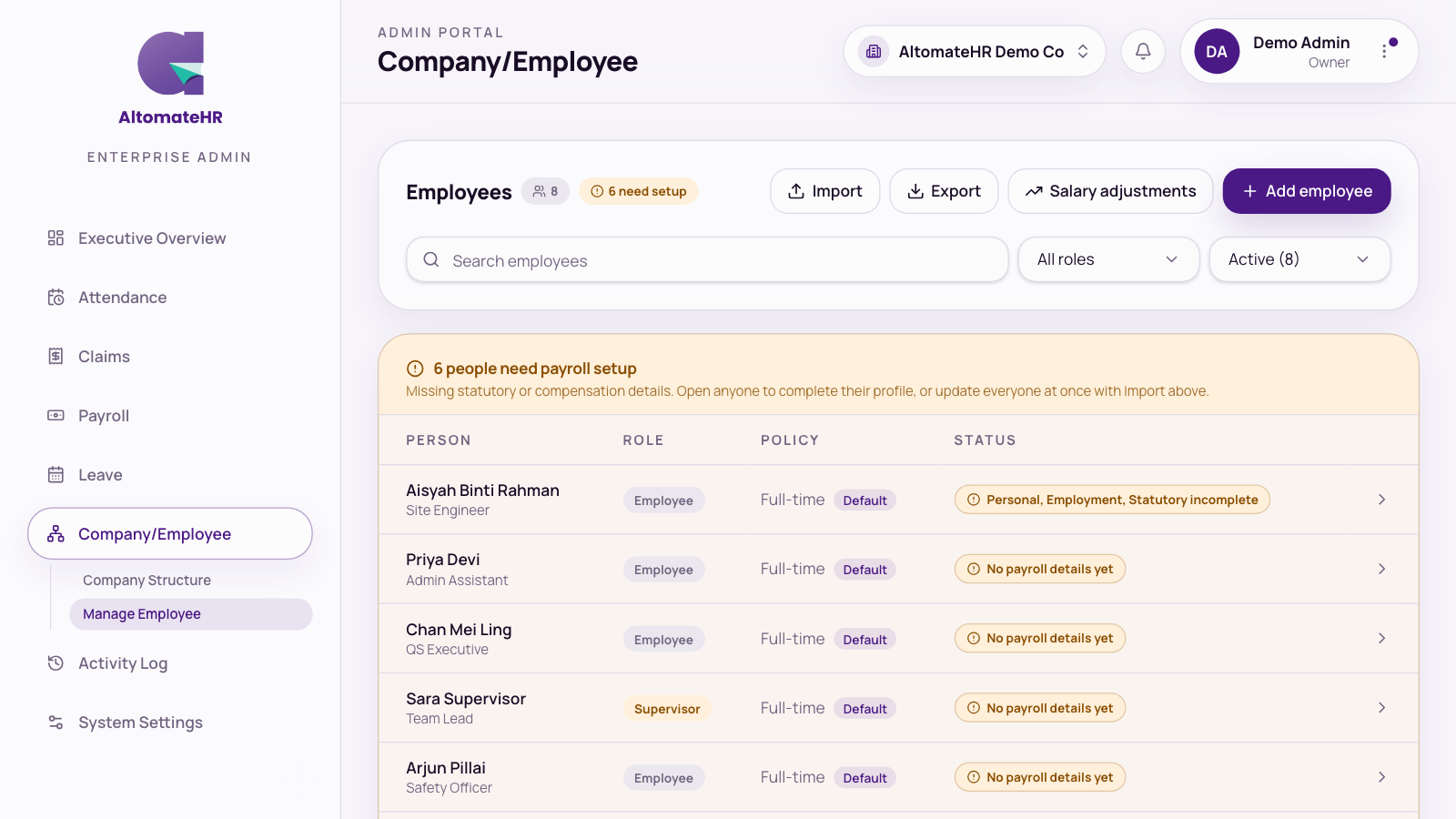
Go to Company/Employee, then Manage Employee. This is everyone you pay, and everything payroll needs to know about them.
The employee list
- Search, and filter by role and by status: Active (the default), Archived or All statuses.
- People are grouped into need payroll setup (something’s missing), ready for payroll (who a pay run will include) and archived (left the company).
- Anyone with no salary on file is named in a warning. They’d get a zero payslip, which stops the run being submitted.
Add one employee
- Press Add employee.
- Enter their name, job title, join date, email, date of birth, role and policy. Employee ID is optional: leave it blank and the next number in your company’s pattern is used.
- Tick Send a welcome email to send them their sign-in details.
Their starting password is their email followed by their birth month and day (for example ali@company.com1123), unless you type one.
Add or update many employees with a spreadsheet
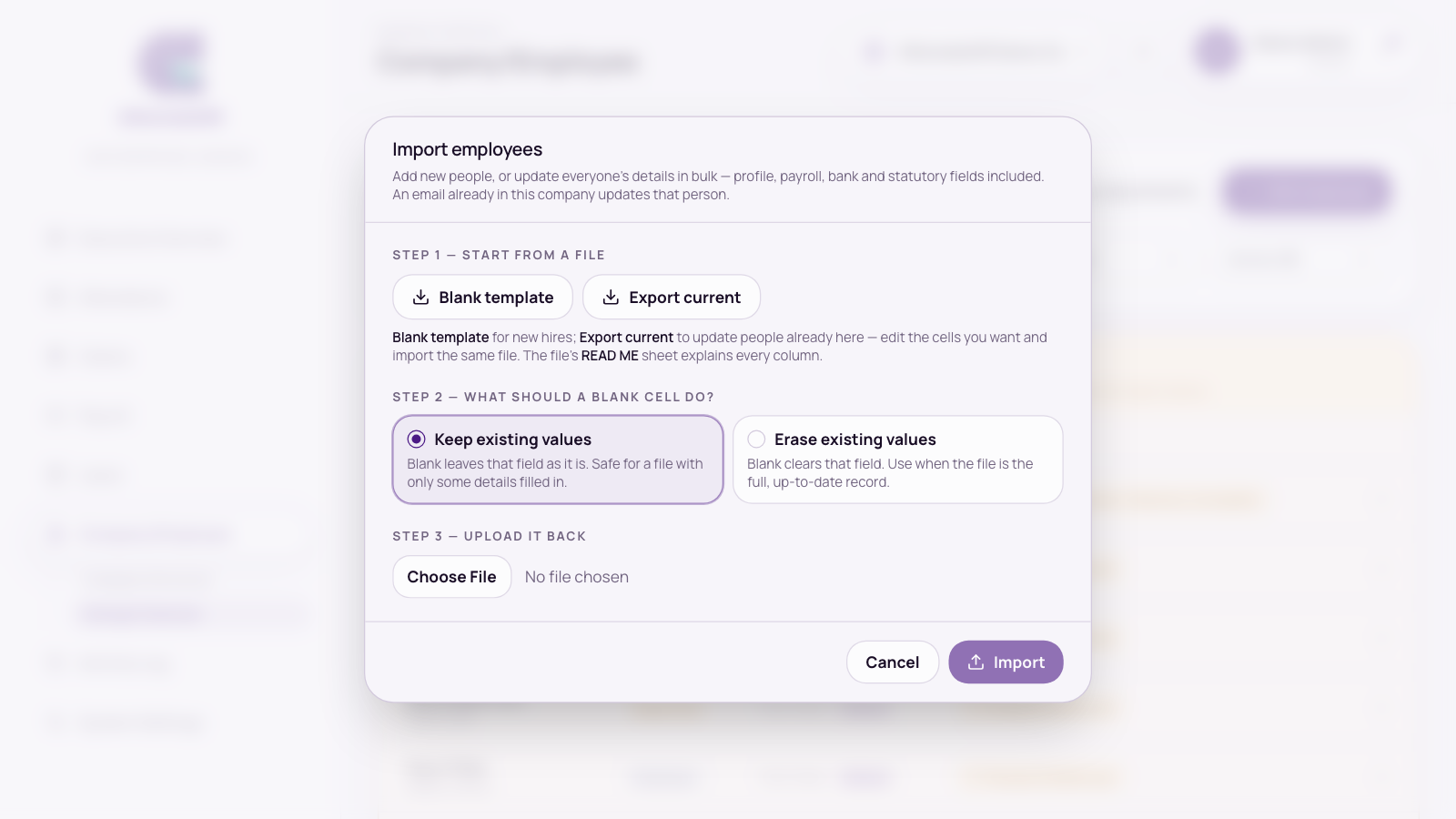
- Press Import.
- Step 1: download the Blank template for new hires, or Export current to update people already on file. The READ ME sheet explains every column, including payroll, bank and statutory details.
- Step 2: choose what an empty cell does. Keep existing values is the safe default. Use Erase existing values only when your file is the full, up-to-date record.
- Step 3: upload the file. An email already in the company updates that person. Any rows that need a look are listed as warnings. New passwords are shown once, so copy them then.
Export employee details
Press Export and choose Excel or PDF, All fields or Choose fields, and whether to include archived employees. Use Excel for a wide export.
Give several people a pay rise at once
Salary adjustments (shown if you have payroll access) handles a pay round:
- Press Download template. It lists everyone with their current salary.
- Fill in New Salary, and optionally Effective Date, Reason and Notes, only for people whose pay is changing.
- Upload the file.
A new salary applies straight away, so the effective date can be today or earlier, not later. If any row has a problem, nothing is saved and the problem rows are listed. Draft pay runs are marked for a re-run.
An employee’s record
Click anyone to open their record. Each tab shows how many required fields are still empty (outlined in red).
- Personal: contact, identity and nationality, PR, tax residence, OKU, address, emergency contact, spouse and children.
- Employment: salary or hourly rate and salary history, fixed allowances and deductions, join date, employment status, contract end date, probation and confirmation date, previous employment this year (TP3), and archiving.
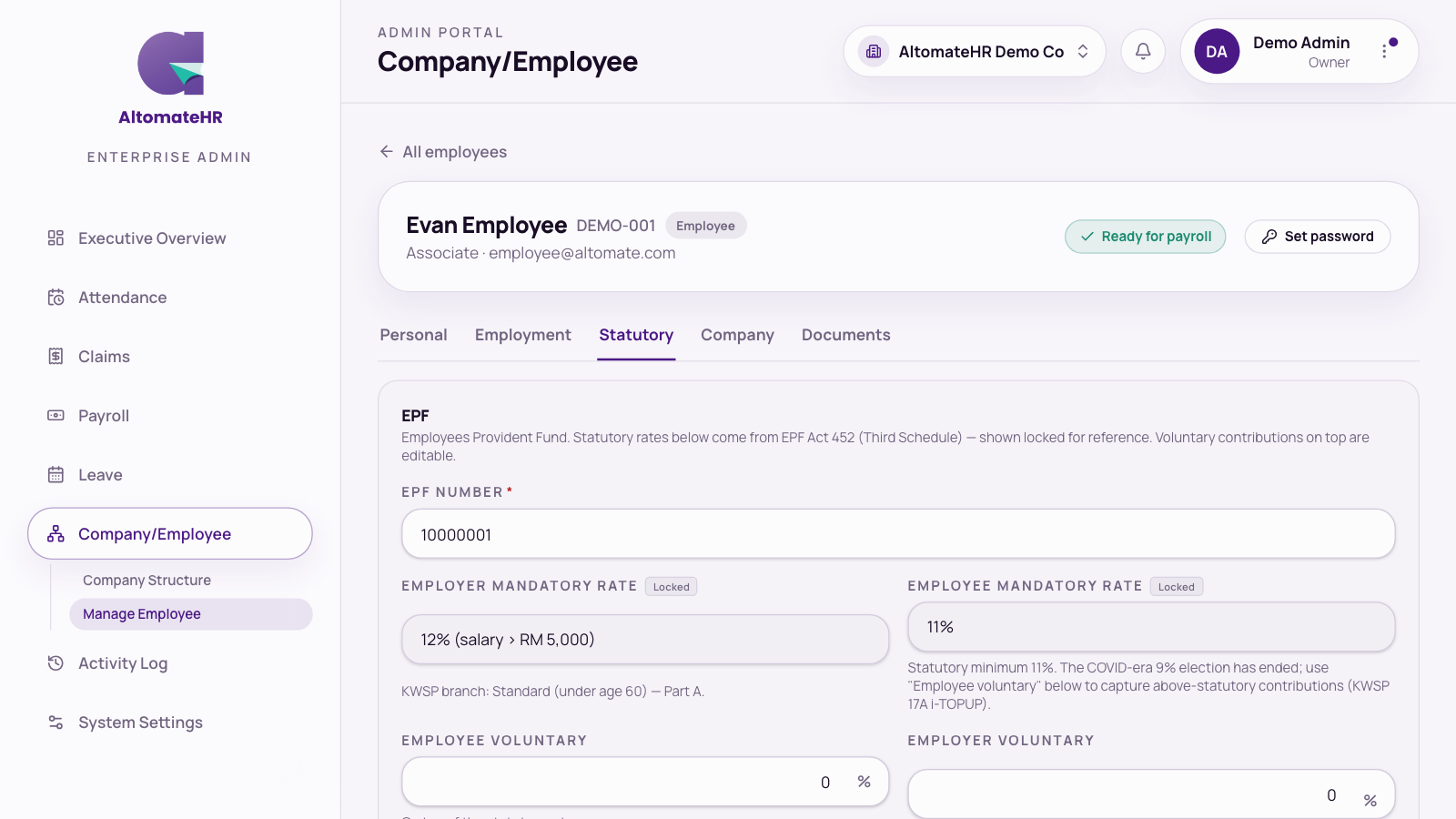
- Statutory: EPF, SOCSO, EIS and SKBBK, income tax, the special 15% tax rate, Bank / payout, and LHDN forms for that person.
- Company: employee number, job title, role, policy, department, work location, and the projects, teams and approval level they belong to.
- Documents: ID scans, contracts, certificates and the person’s HR letters.
Save edits with the bar at the bottom. Set password in the header sets a new password for them; hand it over outside email.
Set how each person is paid
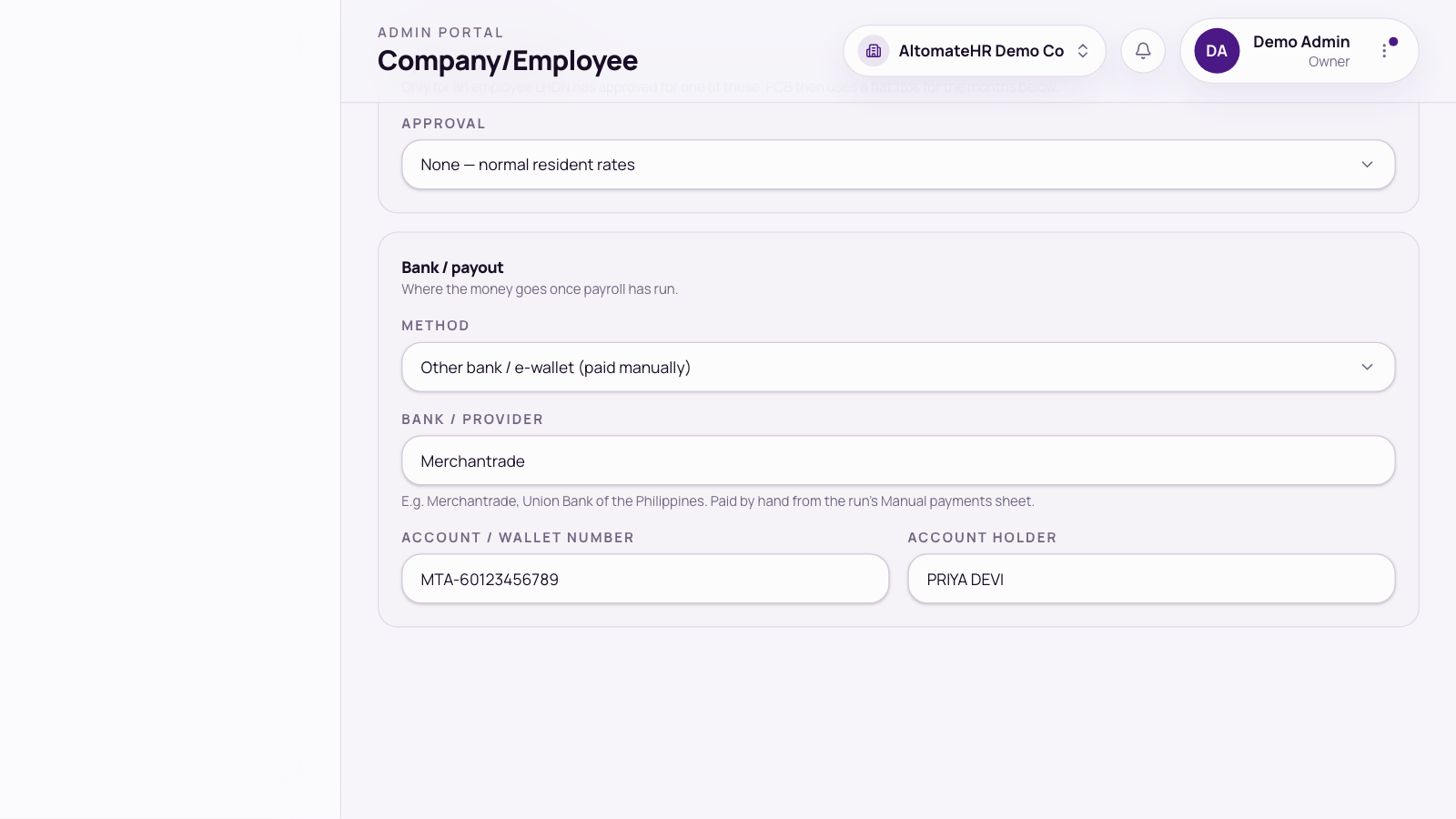
On the Statutory tab, Bank / payout starts with a Method:
- Bank transfer (Malaysian bank): pick the bank from the list and enter the account number and holder. This person is included in the bank file.
- Other bank / e-wallet (paid manually): enter the bank or provider, account or wallet number, and account holder.
- Cash or Cheque (paid manually): no details needed.
Anyone not paid by bank transfer is left out of the bank file and listed on the run’s Manual Payments sheet instead.
Pick the bank from the list: The bank file refuses the whole run if anyone’s bank isn’t recognised, so one typo would stop everyone being paid. For anyone paid another way, use a manual method.
Fields worth getting right
- EPF number: digits only, the member number on the employee’s KWSP statement. KWSP refuses the whole contribution file over one number that isn’t digits, so AltomateHR won’t save anything else. Leave it empty for someone who doesn’t contribute.
- SOCSO number: Use ID number copies the IC or passport number, which is the same for most employees.
- Malaysian citizens: PR is off and tax resident is on, and both are locked.
- Previous employment (TP3): for someone who joined from another employer this year. As soon as you enter any TP3 amount, fill in the Year those figures are for. Without it the figures aren’t used, so AltomateHR won’t save the record until you do. Use Add item for tax-exempt allowances or reliefs the previous employer already gave.
- Special tax rate (15%): only for someone LHDN has approved (Returning Expert, knowledge worker or C-suite). Set the approval and, if it’s time-limited, the From and To months.


