


Clock in
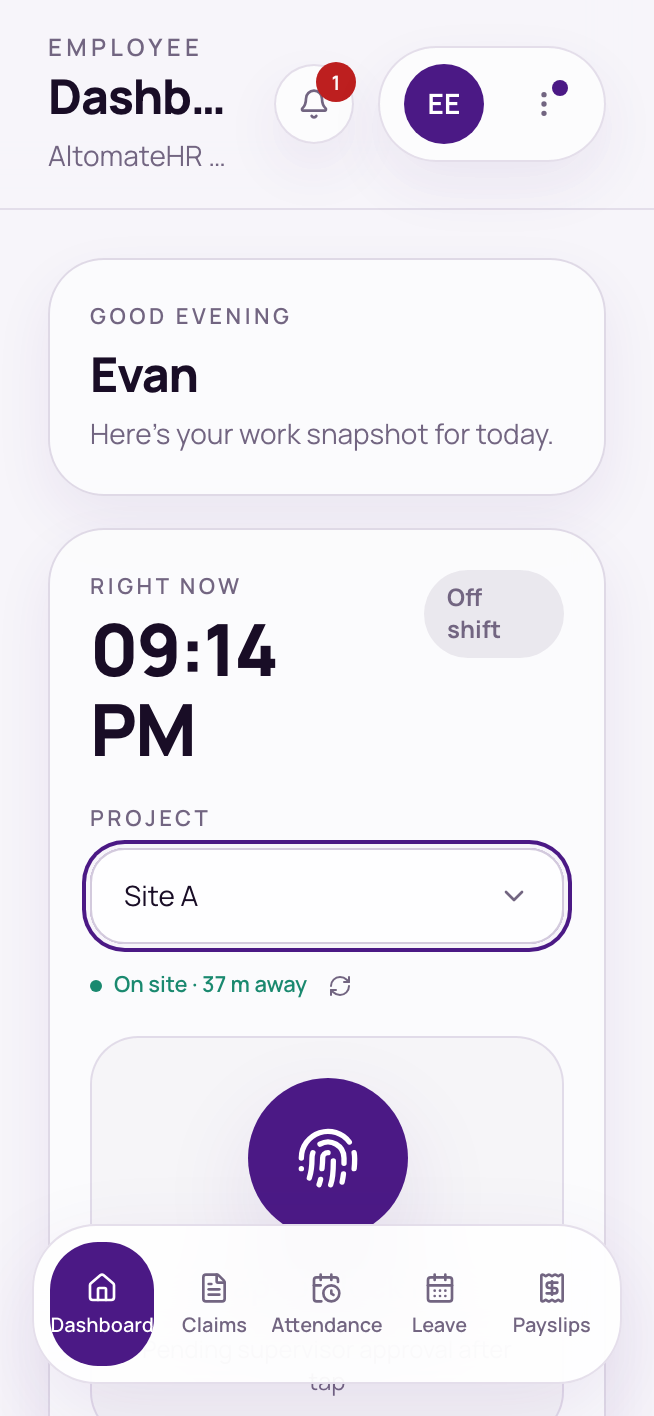
From the Dashboard, use the Right now card.
- Pick your project, where you’re working today. You only see the projects you’re assigned to.
- Tap Tap to Clock In. Allow location when your phone asks. A line under the project shows whether you’re on site and how far away you are.
- Your clock-in goes to your supervisor for approval.
While you’re on the clock, Start break and End break sit under the button.
Not at the site? If you’re further away than your company allows, or your phone couldn’t read your location, a box asks why and for a photo. Add both and you’re clocked in. Your supervisor sees the note and photo.
“Not on an approved network”: some sites only allow clocking in from the office Wi-Fi. Connect to the site’s network and try again, or tell your supervisor.
Clock out
Tap Tap to Clock Out. A summary shows your hours. Tap Clock out now.
After clocking out, you can Start another shift if you work more than one shift a day.
Forgot to clock out yesterday? The Dashboard tells you. Close that shift first; you can correct its end time as you do. If your company has automatic clock-out switched on, a shift left open too long is closed for you and sent for approval.
Fix a wrong clock-out time
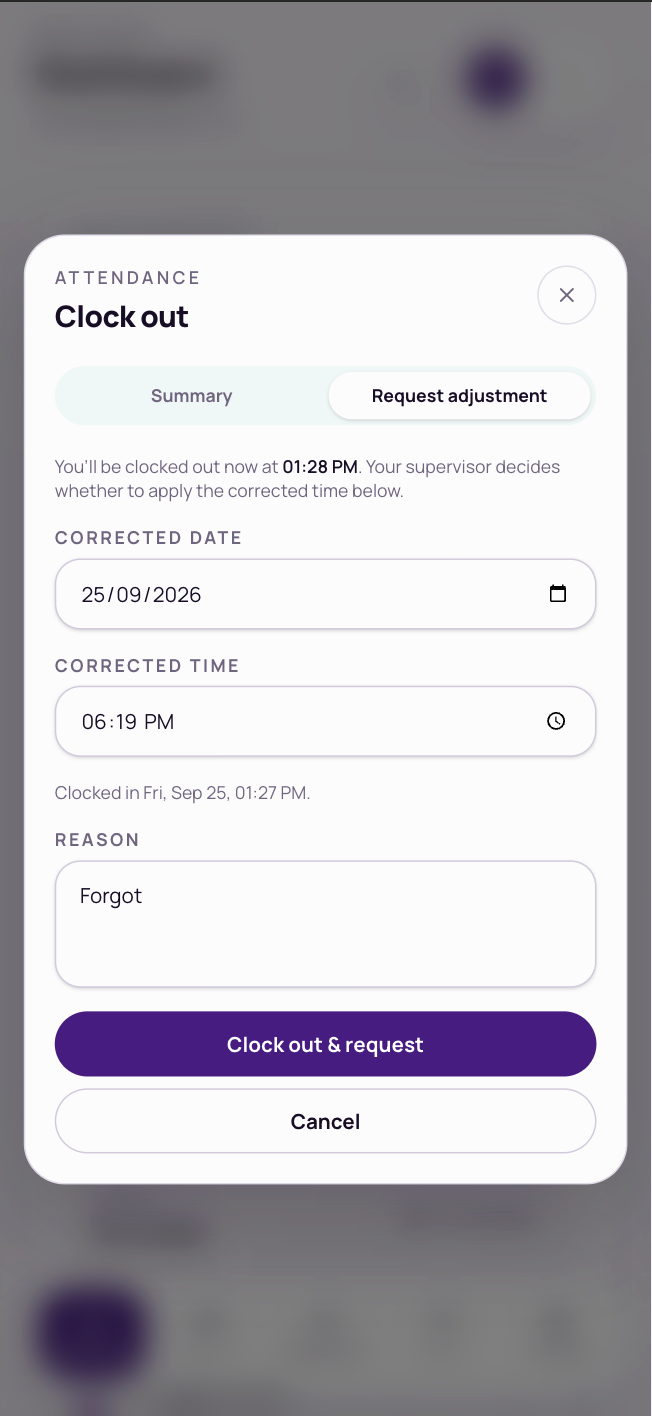
- Tap Tap to Clock Out and open the Request adjustment tab.
- Enter the date and time you actually finished, and a reason.
- Tap Clock out & request. You’re clocked out, and your supervisor decides whether to use the corrected time.
If you’ve already clocked out, ask your supervisor.
Check your hours
- Attendance, then Dashboard: today’s clock-ins, and your hours this week and month against what’s expected, including breaks, time beyond your shift, rest days, holidays and overtime.
- Attendance, then History: every day, month by month, with late, missing, on-leave and off-site days marked. Turn on Needs attention to see only the problem days, or tap Download PDF.
Claim overtime
Overtime isn’t created from your clock times. You claim it yourself: go to Attendance, then Overtime, and tap +.
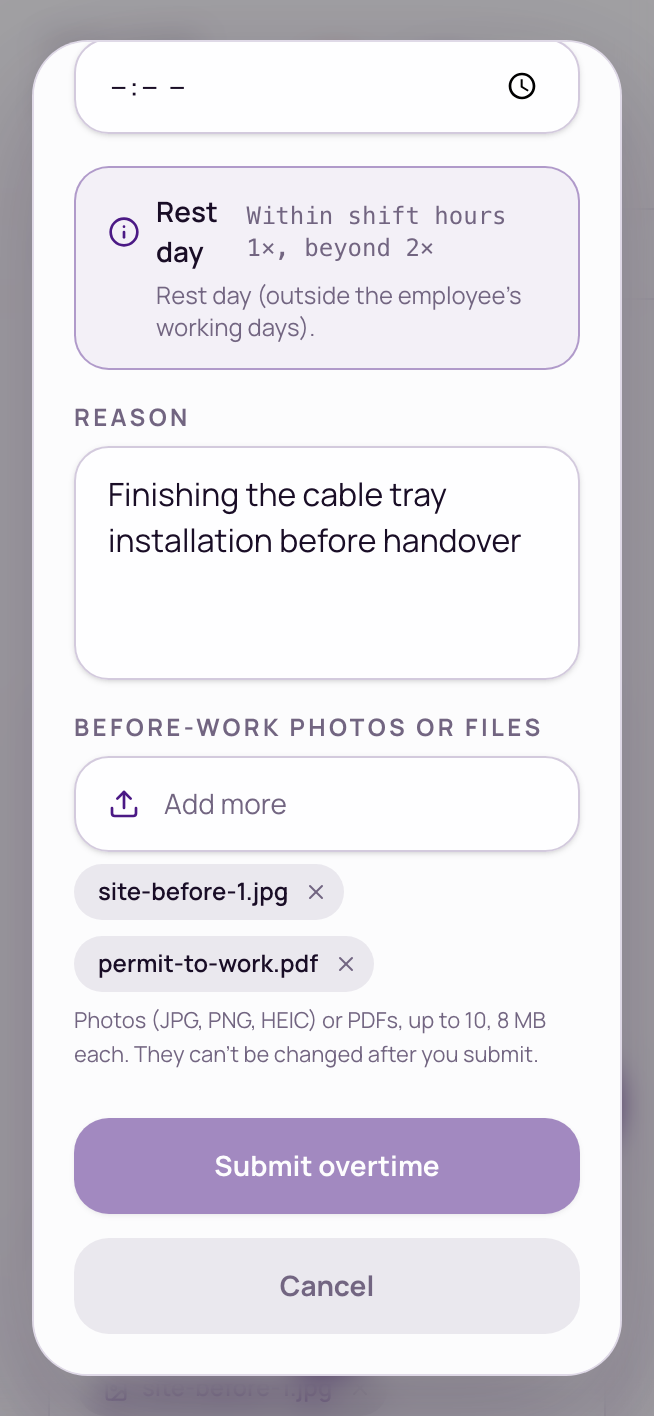
- Fill in the project, date, start and end time, and what the extra work was for.
- Add at least one before-work photo or PDF (up to 10 files of 8 MB each). The form shows the rate it’ll be paid at. Before-work files can’t be changed after you submit.
- When the work’s done, open the overtime and tap Attach after. It can’t be approved without at least one after-work file.
Filter your list by Pending, Approved, Rejected or Cancelled. Rejected overtime shows the reviewer’s note.
Common questions
It says “No project assigned” and I can’t clock in.
You haven’t been added to a project yet. Ask your supervisor or HR.
My location won’t load.
Allow location for your browser, or for the installed app, in your phone’s settings and try again. If it still won’t load, add a note and a photo in the box that appears and clock in anyway.


