


Go to Leave, then My Leave. My Balances shows what you have left of each leave type, and History lists every request.
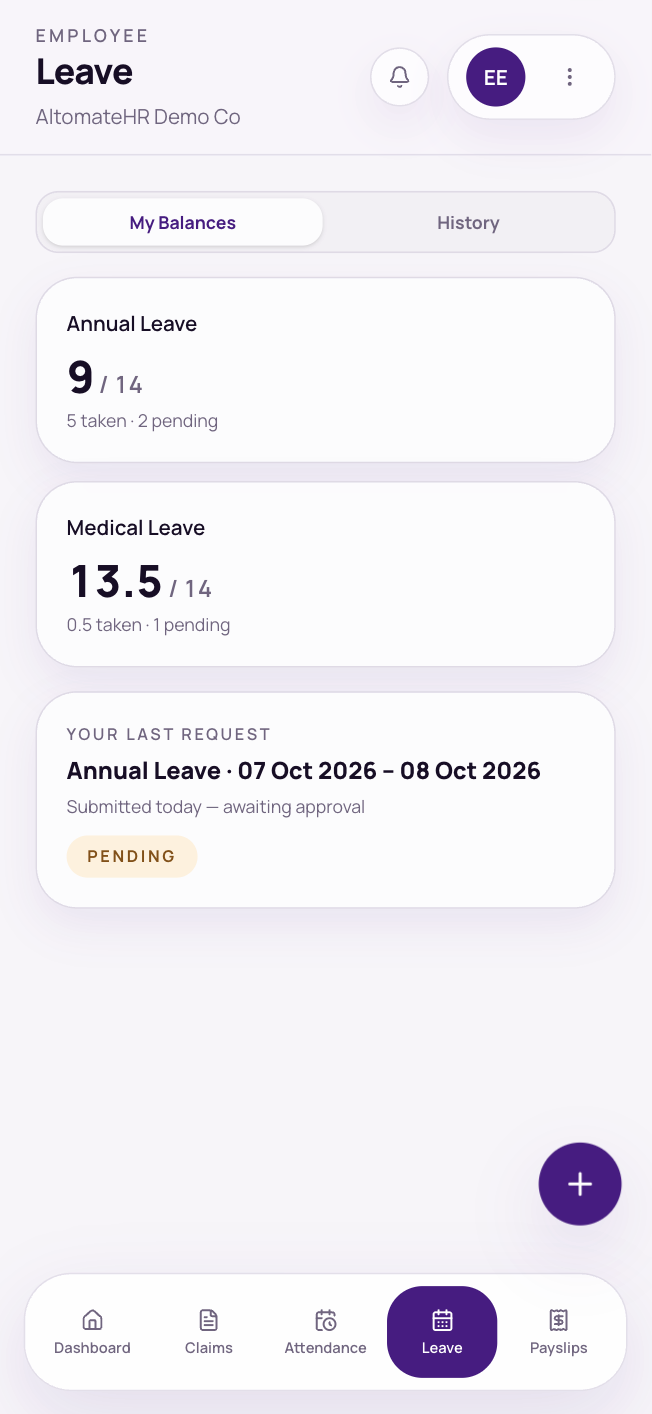
Apply for leave
- Tap + (or Request leave on the Dashboard).
- Pick the leave type and dates. Your balance for that type shows as you choose (unpaid leave has no balance), and Duration shows the working days that will come off it.
- Add a reason and attachment if you like. Attach your MC here as a photo or PDF up to 8 MB.
- Tap Submit. It goes to your supervisor, and you’re notified when it’s decided.
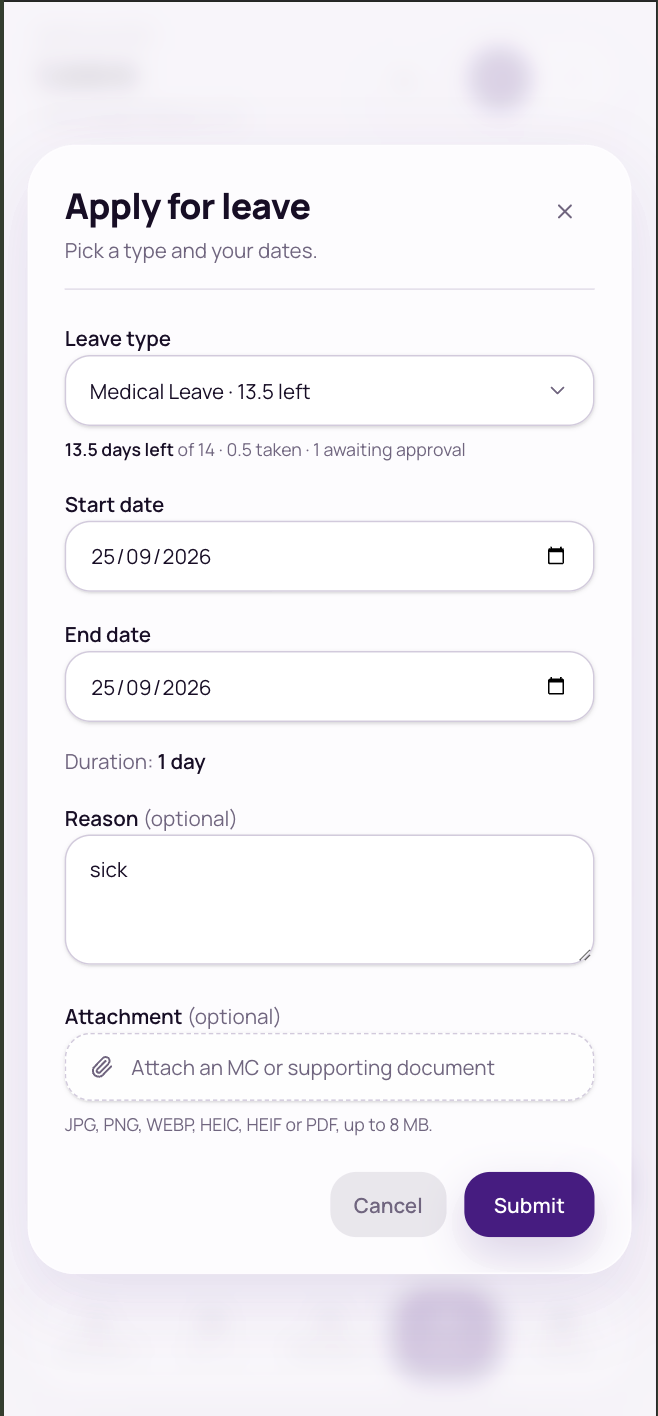
How days are counted: Only working days count. Weekends and public holidays in the range are left out. You can’t ask for more than your balance. A half day must start and end on the same date, and can’t be a weekend or public holiday.
The list only shows the leave types that are for you, for example Maternity Leave for women and Paternity Leave for men, going by the gender on your profile. If one you expect is missing, ask HR to check your profile.
Change or cancel a pending request
- Edit it: in History, tap Edit (or open the request and tap Edit). Change the type, dates, reason or attachment, then tap Save changes. It stays pending and keeps its place with your approver.
- Take it back: tap Cancel, then apply again if you still need the time off.
The Edit button goes away once an approver has acted on the request. Leave HR filed for you can’t be edited; ask HR to change it.
Cancel approved leave
If your leave is approved and hasn’t started yet:
- Tap Request cancellation, add a reason if you like, and tap Send request.
- Your approver reviews it. Your leave stays booked until they agree; then the days go back into your balance.
While you wait, the leave shows Cancellation requested. Tap Withdraw request if you change your mind. If your approver says no, you’ll see Cancellation declined and the leave goes ahead. Leave that has already started can’t be cancelled here: ask HR.


