


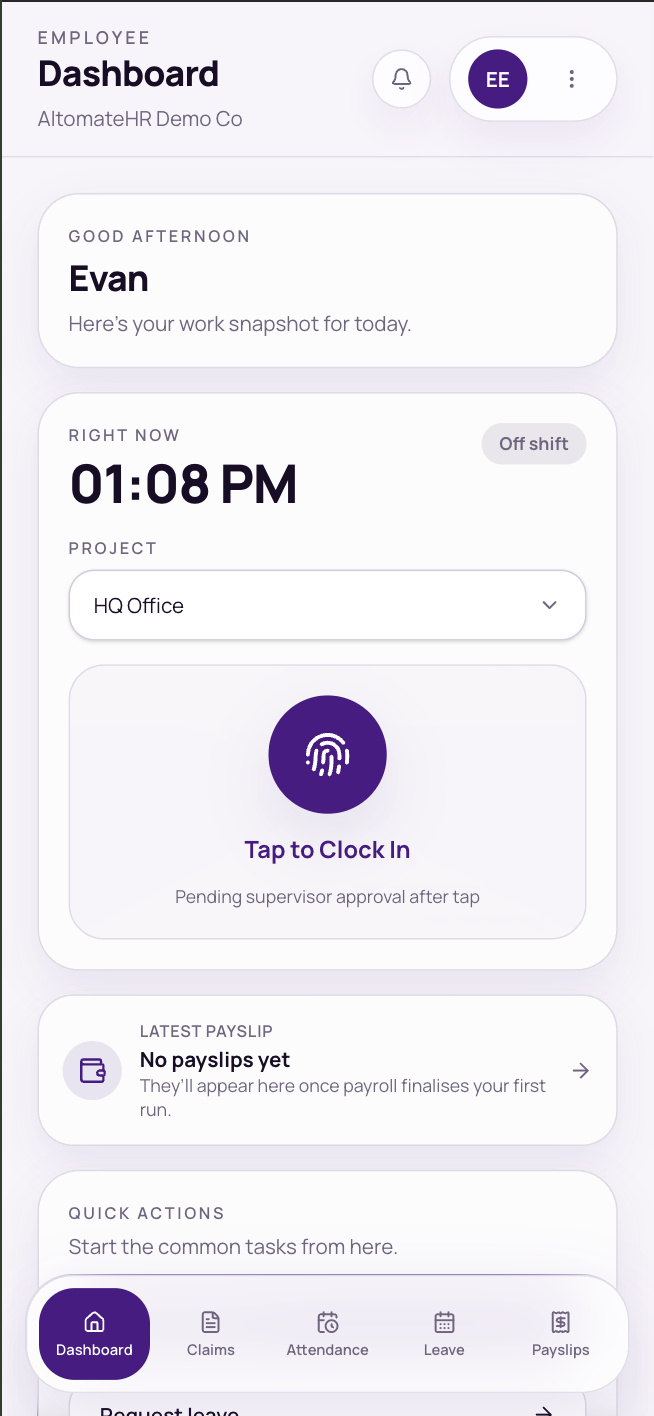
AltomateHR is where your company keeps your attendance, leave, claims and pay. On your phone there are five tabs along the bottom:
- Dashboard: clock in and out, take breaks, see your latest payslip, and start a claim or leave request.
- Claims (if your company uses it): photograph a receipt and submit it, then track it until you’re paid.
- Attendance (if your company uses it): your hours this week and month, your history, and overtime.
- Leave: your balances, and applying for leave with an MC attached.
- Payslips: your payslips, with the breakdown and a PDF.
If you can’t see a tab, it isn’t switched on for you.
Sign in the first time
Your account already exists: HR created it.
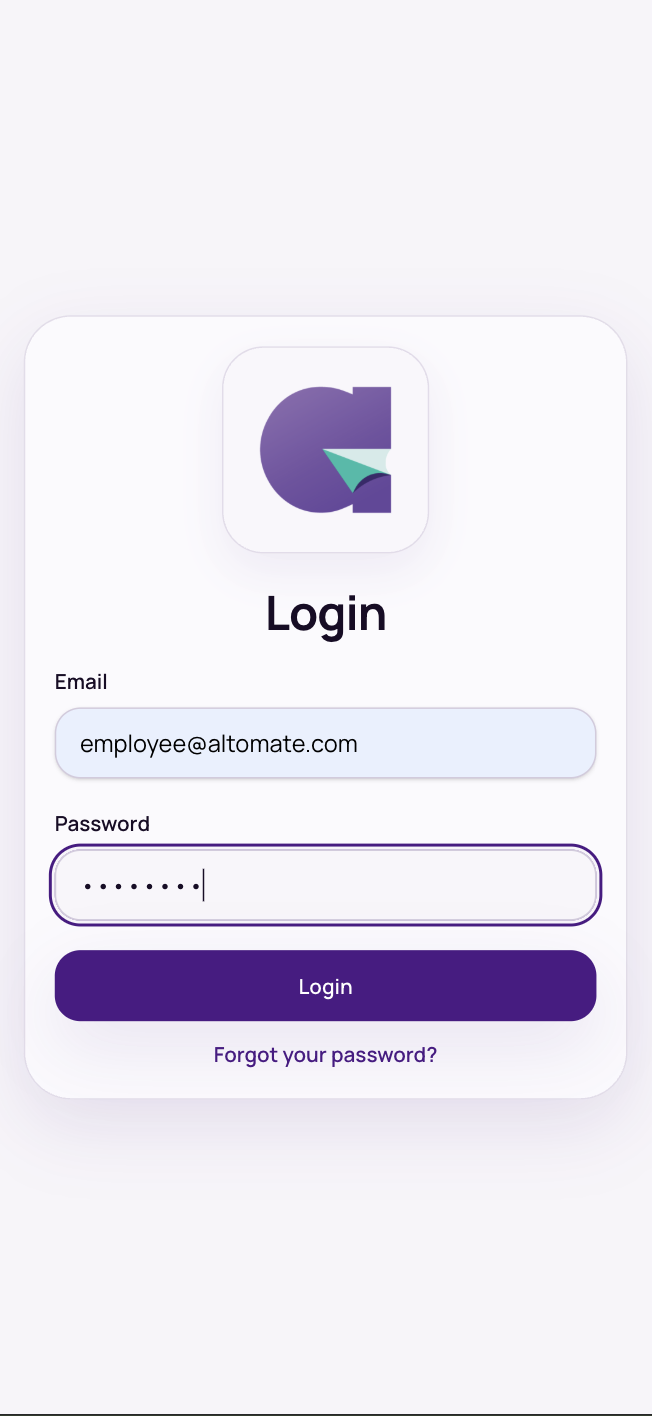
- Go to hr.altomate.io in your phone’s browser (Safari on iPhone, Chrome on Android). The same link is in your welcome email.
- Sign in with your work email. Your starting password is your email address followed by the month and day you were born, four digits with no spaces. For example, if your email is ali@company.com and you were born on 23 November, your password is ali@company.com1123. Your welcome email says if HR set a different one.
- Change it straight away: open the ⋮ menu and choose Change password. Enter your current password, then a new one of at least 8 characters, twice. You’re signed out of every device; sign back in with the new password.
Forgot your password
- Tap Forgot your password?, enter your work email and tap Send code.
- A 6-digit code arrives by email. Check your spam folder if it isn’t there. Tap Send a new code if it has expired.
- Enter the code and a new password twice, tap Set new password, and sign in.
If you signed in through the Altomate app, your password is managed there instead.
Put AltomateHR on your phone
There’s nothing to download from an app store. Add it to your home screen once and it opens like any other app.
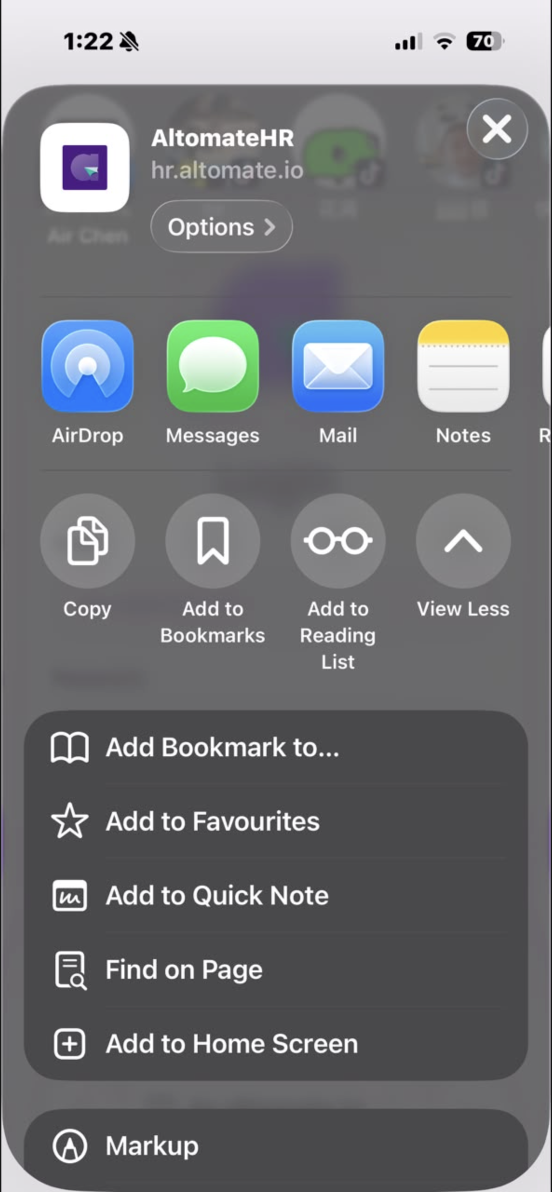
- iPhone (Safari): open hr.altomate.io, tap the Share button, then Add to Home Screen, then Add.
- Android (Chrome): open hr.altomate.io, tap the ⋮ menu, then Install app (or Add to Home screen).
When there’s an update, a bar says a new version is available. Tap Reload.
Find your way around
- Bottom tabs: Dashboard, Claims, Attendance, Leave and Payslips. Some tabs have sub-pages in a strip under the header.
- The bell: approvals and decisions about your requests. Tap one to go straight to it.
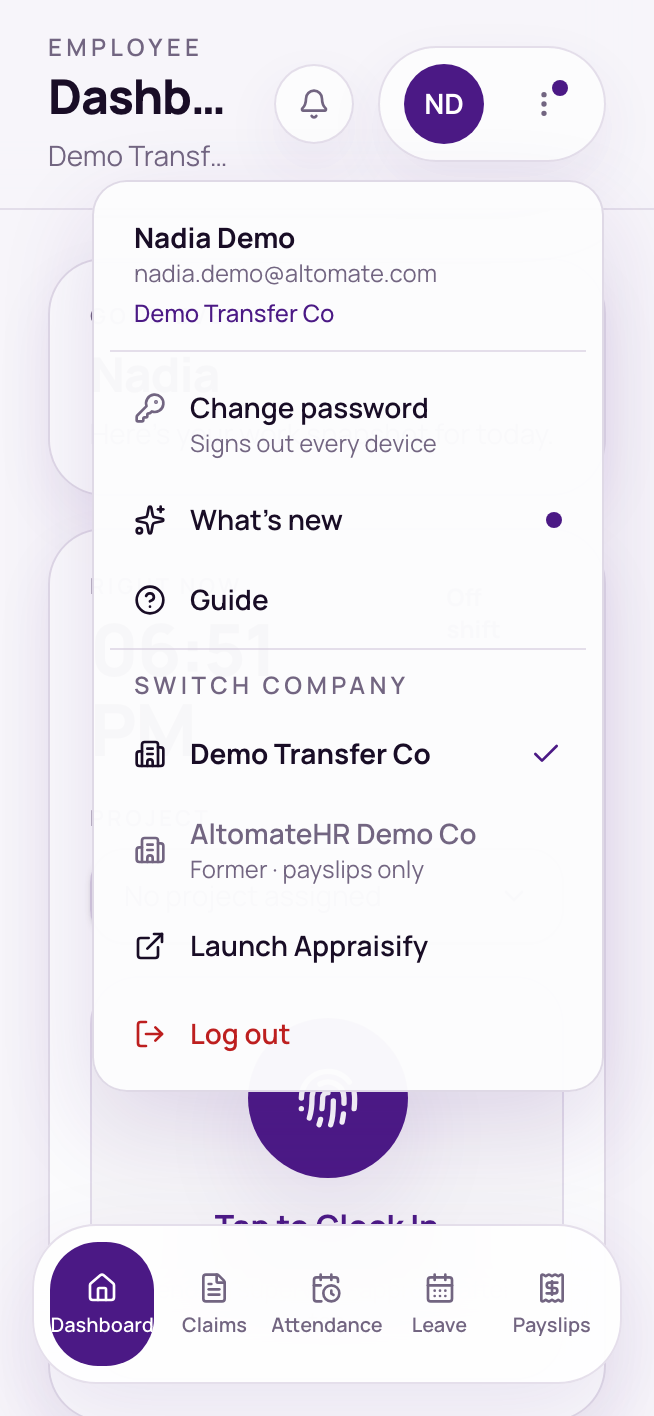
- The ⋮ menu: change password, notifications, What’s new, Guide, switch company, and log out.
Notifications
Open the ⋮ menu and choose Enable push notifications to hear about approvals and decisions even when the app is closed. On iPhone, add AltomateHR to your home screen first: notifications only work from the installed app.
If you work for more than one company
Open the ⋮ menu and choose Switch company. On a computer, it’s the company name at the top instead.
A company you’ve left or been transferred out of is marked Former · payslips only. There, you can still open and download your old payslips, but clocking in, claims and leave are only in your current company. Leave company removes it from your account, so download any payslips you need first.
Common questions
I can’t see the Claims (or Attendance) tab.
It isn’t switched on for you. Ask HR if you think it should be.
I only see Payslips.
You’ve opened a company you no longer work at. Switch to your current company from the company menu.
The sign-in link from Altomate says it has expired.
Go back to Altomate and open AltomateHR again. Each link works once, for two minutes.


