


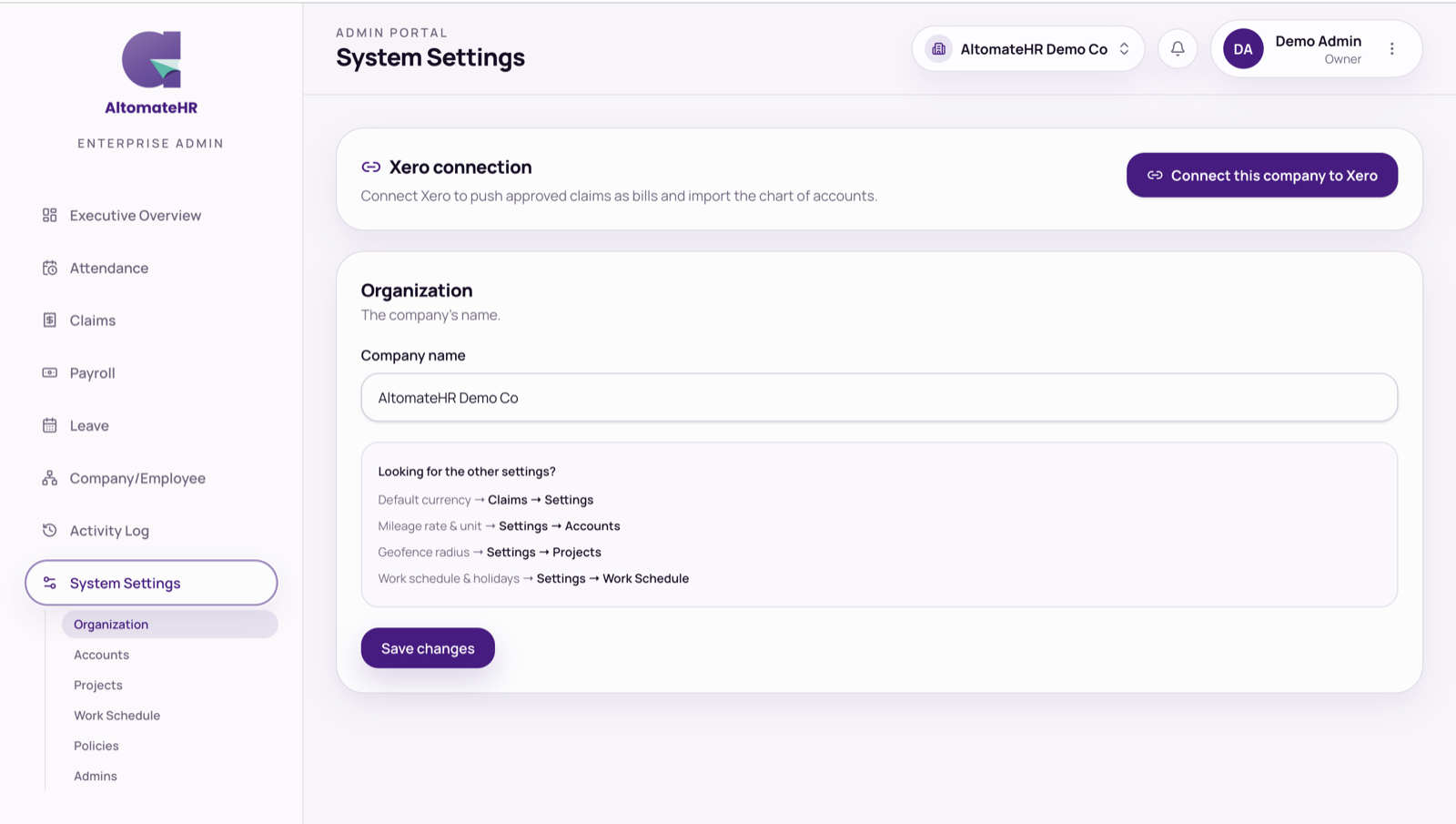
Connect Xero in System Settings, then Organization. Each company connects to its own Xero organisation.
Connect
Press Connect, sign in to Xero, and choose only this company’s organisation.
What Xero connects to
- Chart of accounts: Xero owns it while connected. Press Sync from Xero in Accounts after changing it in Xero. Accounts no longer in Xero are archived.
- Projects: pulled from Xero Projects, or from the options of a tracking category you choose. Once you choose a category, it becomes the project list: projects made by hand, or not in that category, are hidden from the pickers until you clear it.
- Claims: approved own-money claims become a bill; company-money claims become a Spend Money transaction. See How to Manage Claims.
- Payroll: the payroll journal is posted when a run is approved, if you’ve switched on Xero sync on submit. Under Payroll, Settings, Xero sync, choose the expense accounts and the liability accounts for EPF, SOCSO, EIS, PCB and net salary. Sync from Xero first if a list is empty.
If the connection stops working
Press Reconnect if the card says the connection has stopped working. Disconnect removes AltomateHR from that Xero organisation.


