


The monthly routine
- All month: staff clock in, submit claims and apply for leave in the employee app, and supervisors approve them.
- Payroll day: an admin runs payroll, then checks and adjusts it.
- Payroll day: the approver approves and files it, which locks the figures.
- After approval: download the bank file and statutory files and upload them to your bank and to KWSP, PERKESO and LHDN. See How to Download Payroll Files.
Go to Payroll, then Payroll runs. There’s one run per month.
Step 1: Create the draft
Press Create draft. In Start a payroll run, pick the month and year, and which policies and employees to include. Only people whose records are complete can be included, and only employees and supervisors are paid through payroll, not owners or admins. Someone who has left is still listed for their last month.
Step 2: Run payroll
Press Run payroll. AltomateHR works out everyone’s pay (salary, overtime, unpaid leave, allowances, loan repayments and every statutory line) from their records and the month’s approved overtime, leave and claims.
Step 3: Check and adjust
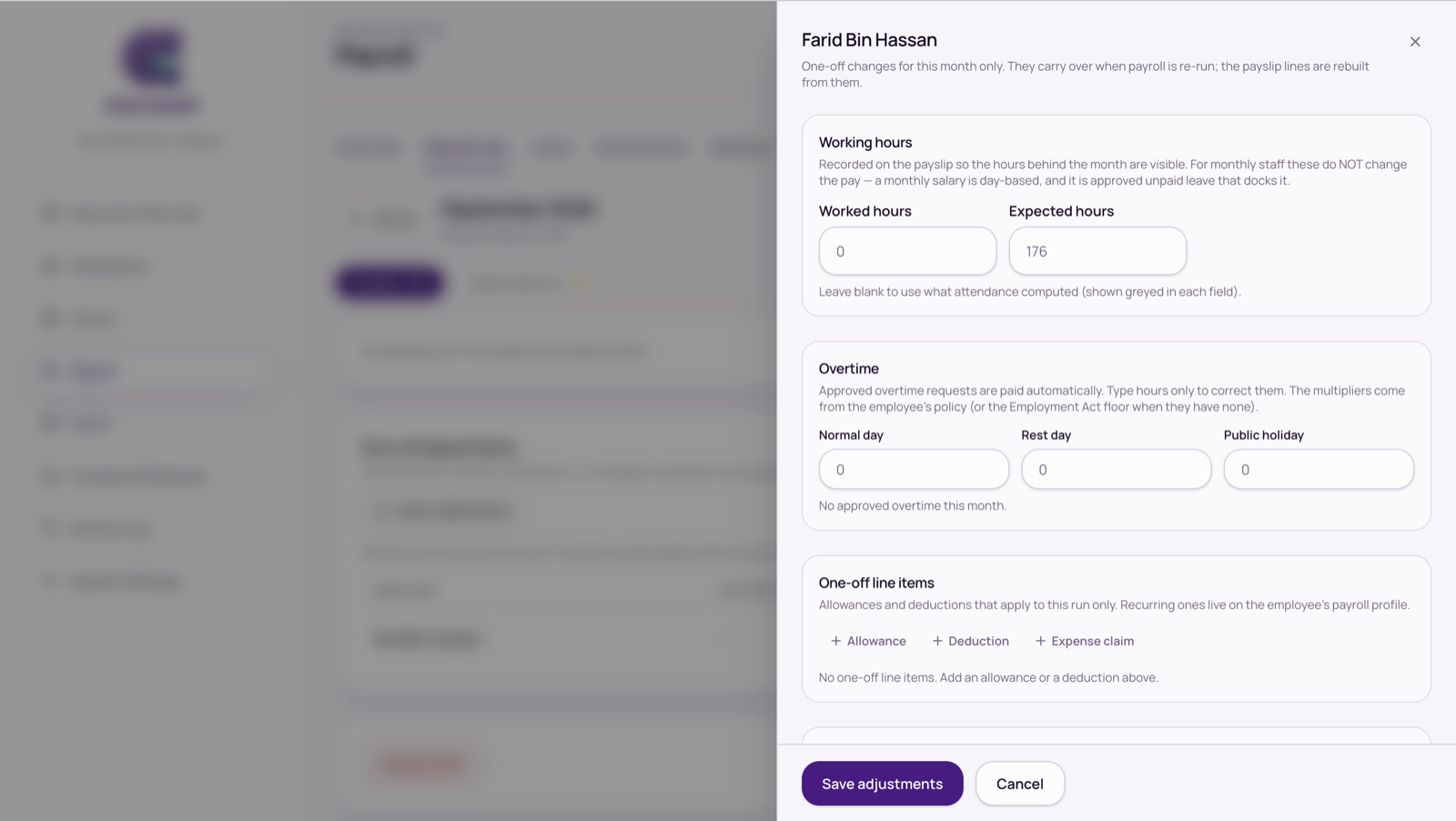
- Edit OT / adjustments on a person’s line changes worked hours or overtime, or adds a one-off allowance, deduction or expense for this month.
- Unpaid leave isn’t offered as an adjustment. It’s deducted automatically from approved unpaid leave.
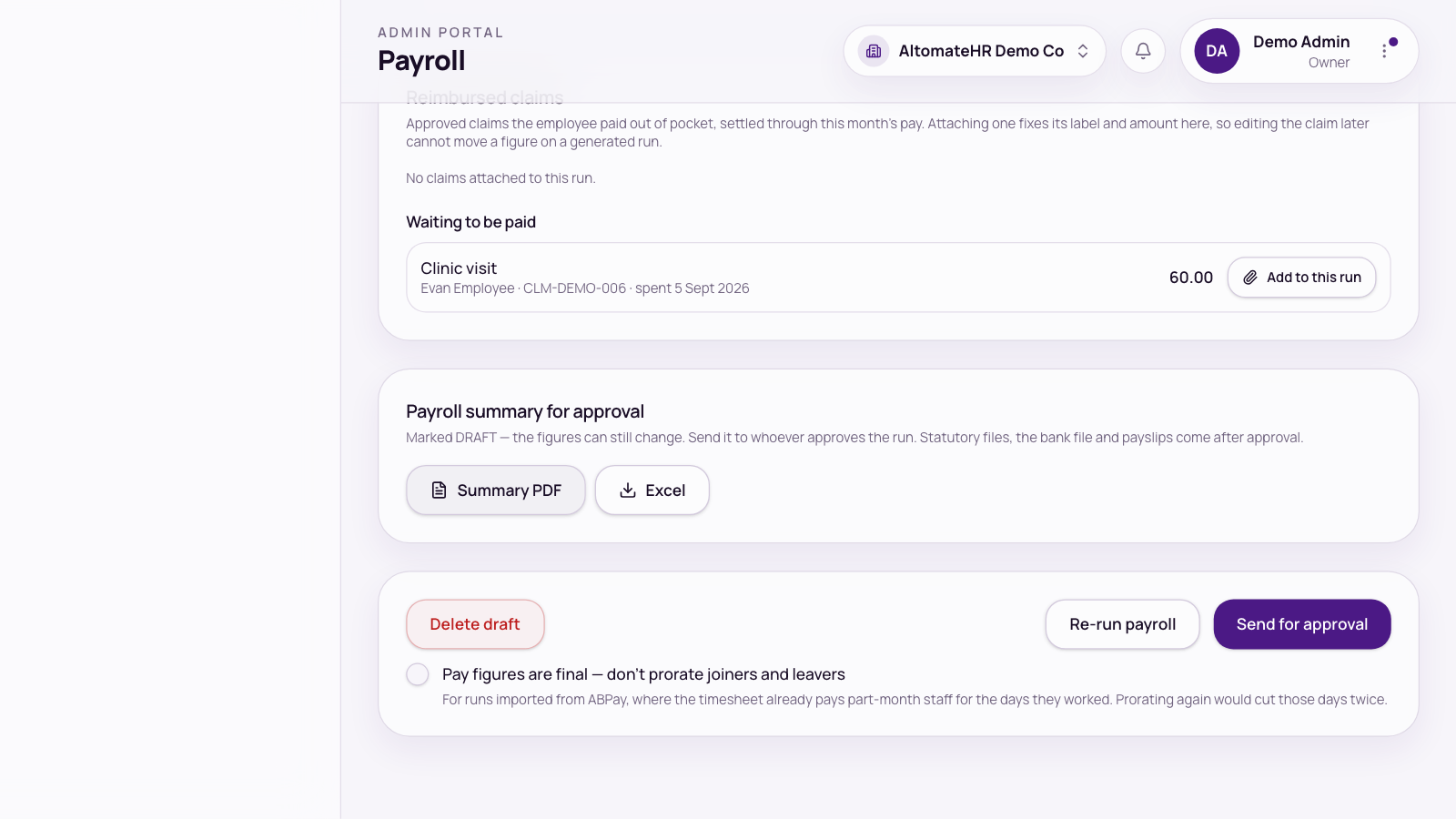
- Reimbursed claims lists approved claims waiting to be paid, which you can add to this run.
- The Needs attention tab lists anyone whose net pay would be negative, anyone on RM0.00, missing fields the statutory files need, and anyone left out.
- While the run is a draft, the download button on a row previews that person’s payslip, marked DRAFT.
Use the search box above the Payslips list to find someone by name, employee ID or job title.
Step 4: Re-run if anything changed
After an adjustment, press Re-run payroll. Adjustments carry over and payslip lines are rebuilt.
Re-run payroll also picks up people hired, or transferred in, after you created the draft, as long as they’re on one of the policies you picked and you didn’t untick them. You don’t need to delete the draft. This doesn’t apply to an older draft with no policy choice recorded, or to a month that was approved and then reverted to draft: those keep the people they started with.
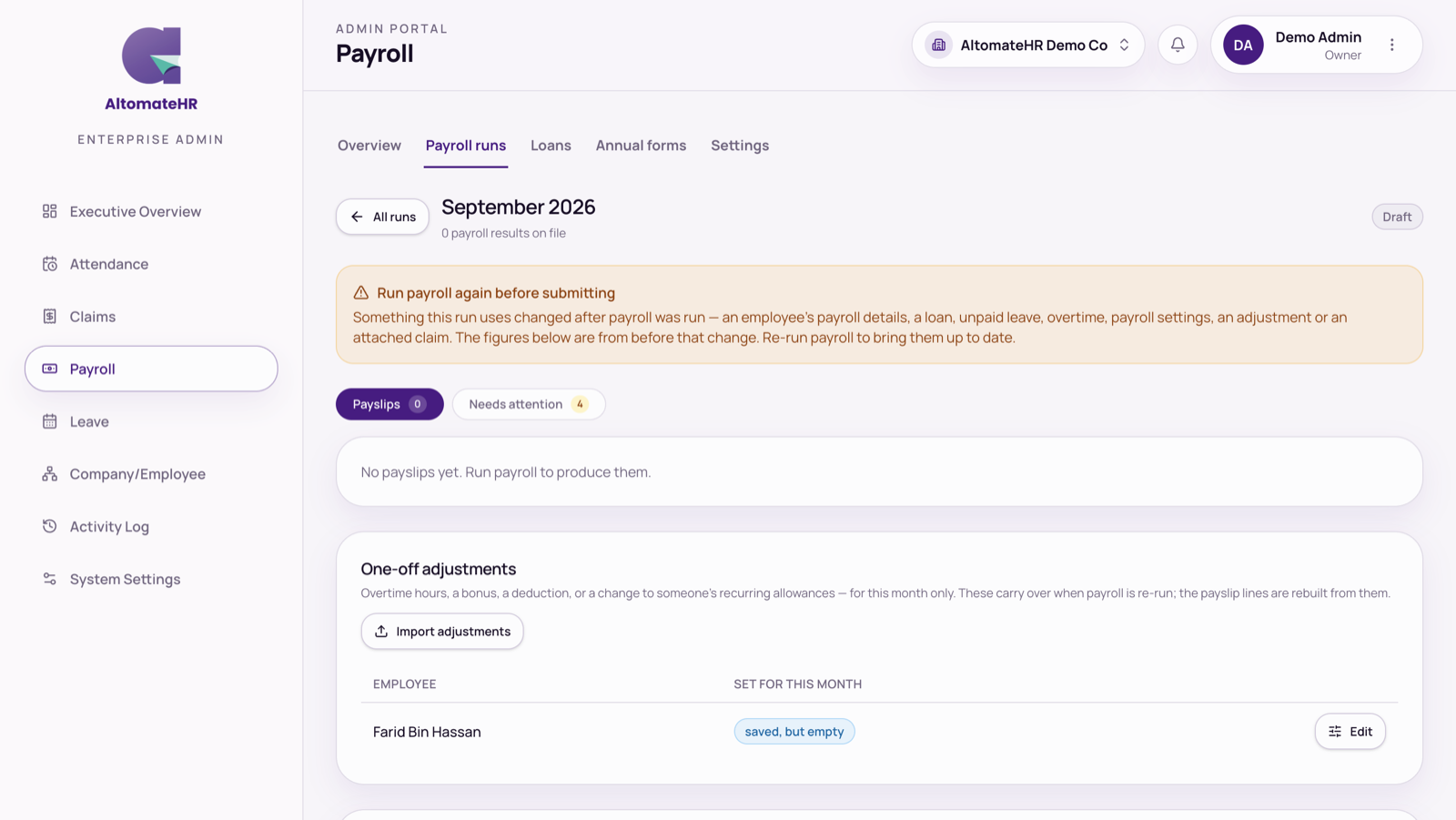
If something the draft uses changes after payroll was run, the run is marked Stale and can’t be sent for approval until you re-run it. That happens when an employee’s payroll details or salary, a loan, approved unpaid leave or overtime, payroll settings, imported year-to-date figures, an adjustment or an attached claim changes.
Step 5: Send for approval
Press Send for approval. The approver either presses Approve and file, or Send back to draft with a note.
To show the approver the figures first, use the Payroll summary for approval card and press Summary PDF or Excel. The file is marked NOT APPROVED with a DRAFT or FOR APPROVAL watermark, so it can’t pass for the final one. Bank files, statutory files and payslips appear only after approval.
What stops a run being sent
- It’s stale: re-run it.
- Someone’s net pay would be negative. (RM0.00 is allowed, for example a director paid nothing.)
- A required employer or employee field is missing.
- Someone’s EPF number isn’t digits only. Fix it on their Statutory tab and re-run.
- The previous month hasn’t been filed yet. Months are filed in order.
After approval
- LHDN payment receipts: once you’ve paid that month’s PCB (MTD), and any CP38, enter the receipt number and date LHDN issued and press Save receipts. They print on each employee’s PCB 2(II) statement.
- Made a mistake? Revert to draft reopens the run. Any later months worked out from it go back to draft too; AltomateHR lists them before you confirm.
How the totals are shown
- Cost to employer is what the company pays out for the month: gross pay plus the company’s EPF, SOCSO, EIS and HRD Corp contributions. Deductions the company keeps (Loan Repayment and Miscellaneous / Other Deduction) are taken off.
- Gross on the payroll screens and the Payroll Summary is pay after deductions the company keeps. An employee’s own payslip still shows their full earnings, with those deductions listed under Deductions. EPF, SOCSO, EIS and PCB are always worked out on full pay.
Started using AltomateHR partway through the year?
Import what’s already been paid so PCB carries on correctly. See How to Prepare EA, Form E, CP8D and Other LHDN Forms.
Common questions
Why can’t I send the pay run for approval?
The message beside the button says why: the run needs re-running, someone’s net pay would be negative, a required field is missing, an EPF number isn’t digits only, or last month hasn’t been filed.
Someone was hired after I created the draft. Do I start again?
No. Press Re-run payroll and they’re added, as long as they’re on one of the policies you picked for the draft and you didn’t untick them.


