


Employees apply for leave from the app and supervisors approve it. Under Leave, you set the rules and see everyone’s balance.
The Leave pages
- Overview: pending approvals, who’s on leave today, what’s been approved this year, and days used by type.
- History: every application, filtered by person, type, dates and status.
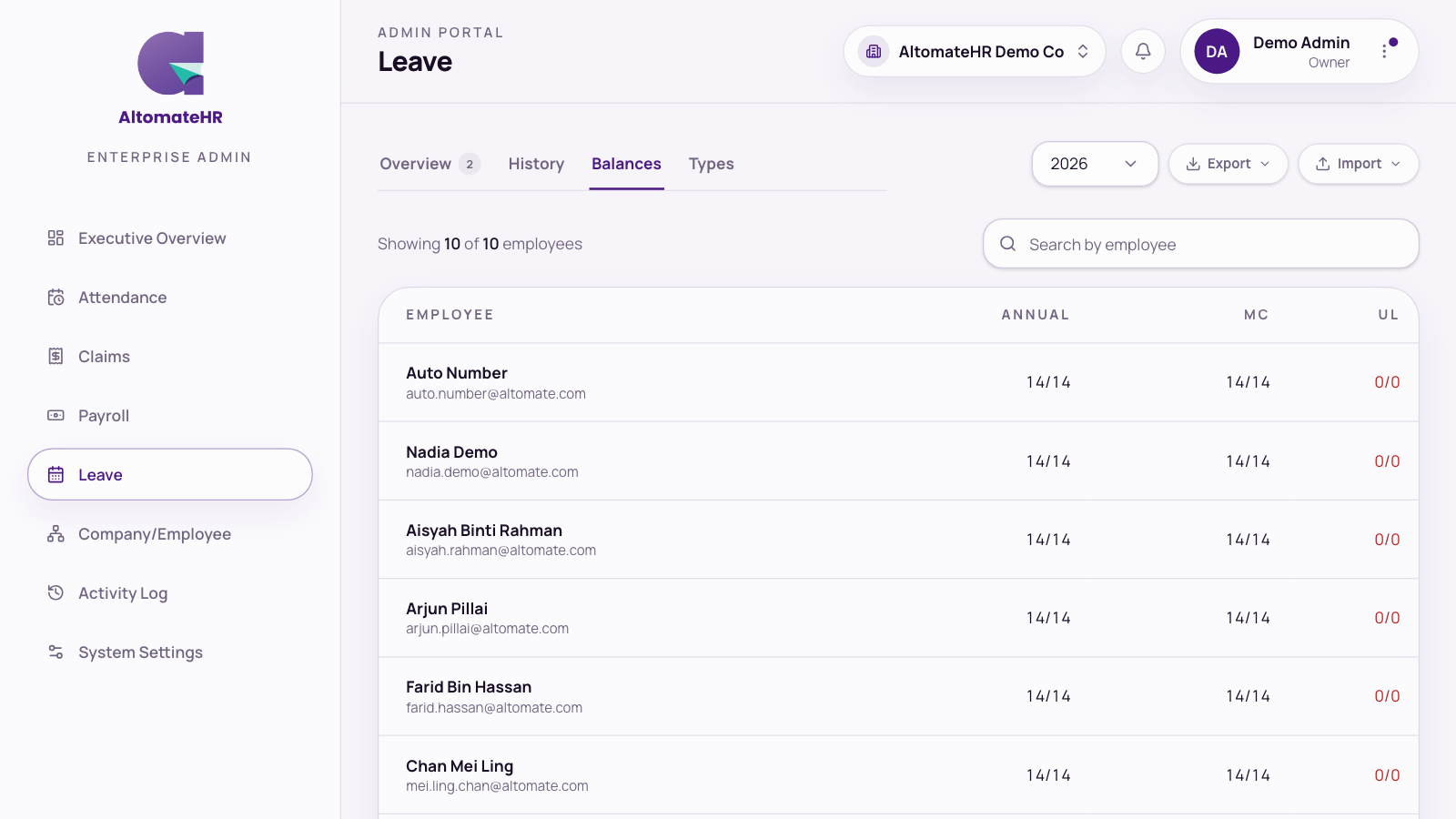
- Balances: every staff member’s remaining days per leave type. Open a person to Apply on behalf (recorded as approved straight away), change or reset their entitlement, or export their leave report.
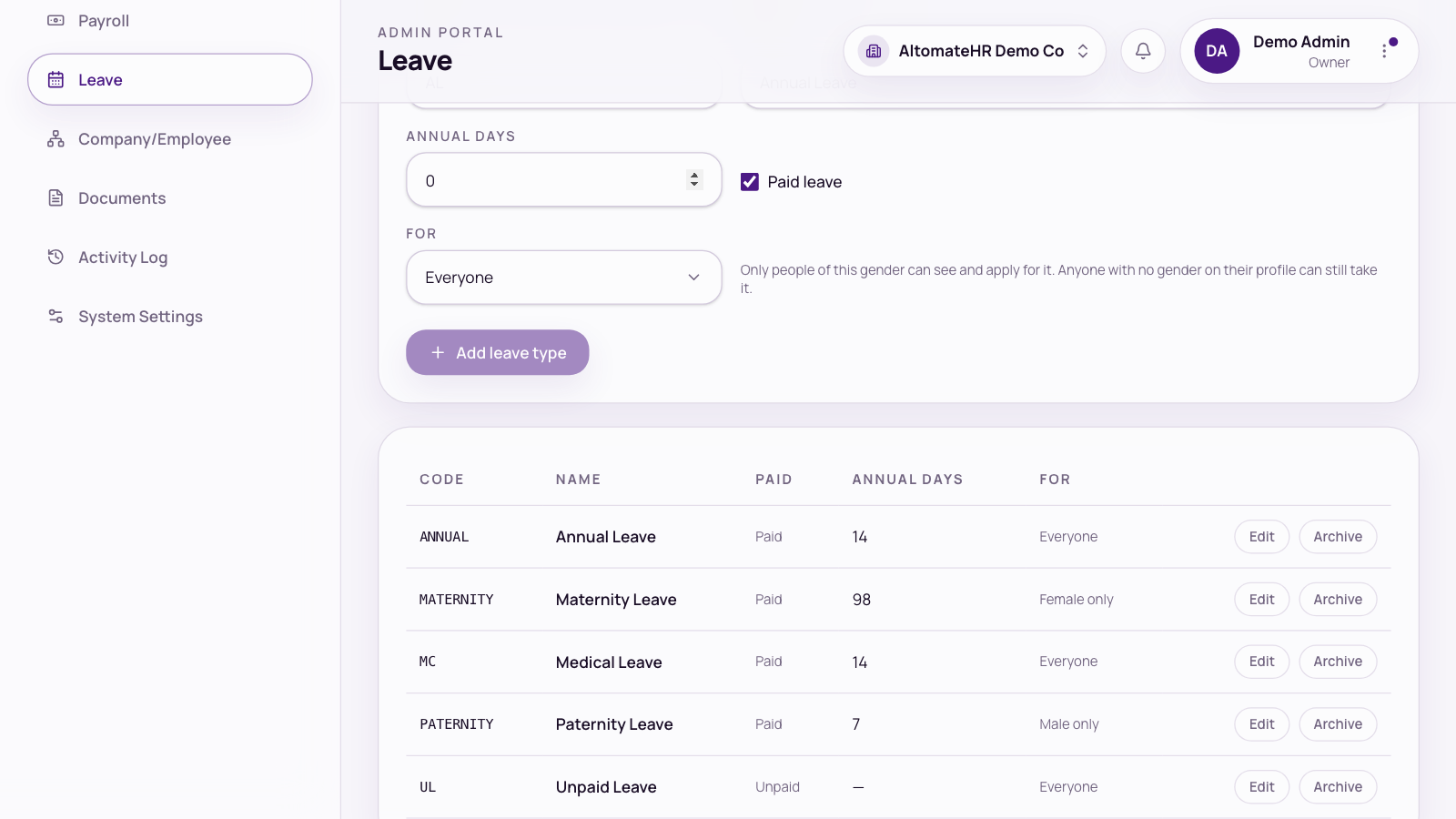
- Types: your leave types (code, name, annual days, paid or unpaid, and who it’s for), and for Annual Leave, lump sum or pro-rated, and carry-forward with its expiry month and maximum days.
Leave for one gender only
Each leave type has a For setting: Everyone, Female only or Male only. New companies start with Maternity Leave set to Female only and Paternity Leave to Male only.
Employees only see the leave types that are for them, going by the gender on their profile. Someone with no gender on file can take either, so fill it in for anyone who might apply for maternity or paternity leave.
Cancel someone’s leave
- Open the application in History and press Cancel this leave. This works for pending or approved leave.
- Add a reason if you like (the employee sees it), then press Cancel leave.
Approved days go back into their balance and they’re notified. This can’t be undone. Cancelling approved unpaid leave marks any open payroll draft for those dates for a re-run. A payroll already submitted isn’t changed.
Employees can edit their own pending leave until an approver acts on it, and can ask to cancel approved leave that hasn’t started. Leave you filed with Apply on behalf, or imported, can’t be edited by the employee. To change it, cancel it here and apply again.
Import leave history
Moving from another system? Import the leave your staff have already taken. Each person’s balance works itself out from the days imported.
- Open Import, choose Upload a file under Leave history, and press Download template.
- Fill in the template, choose your file and press Import.
- The window shows how many rows were imported, skipped or failed, with the reason for each failure.
If your file uses leave types you haven’t set up, a panel lists them. Check the code, enter the annual days, untick Paid for unpaid leave, and press Add. Then press Import again: rows already imported are skipped.
Unpaid leave and payroll: Approved unpaid leave is deducted in that month’s payroll automatically. If it’s approved after the month’s payroll has been run, the run is marked for a re-run.


