


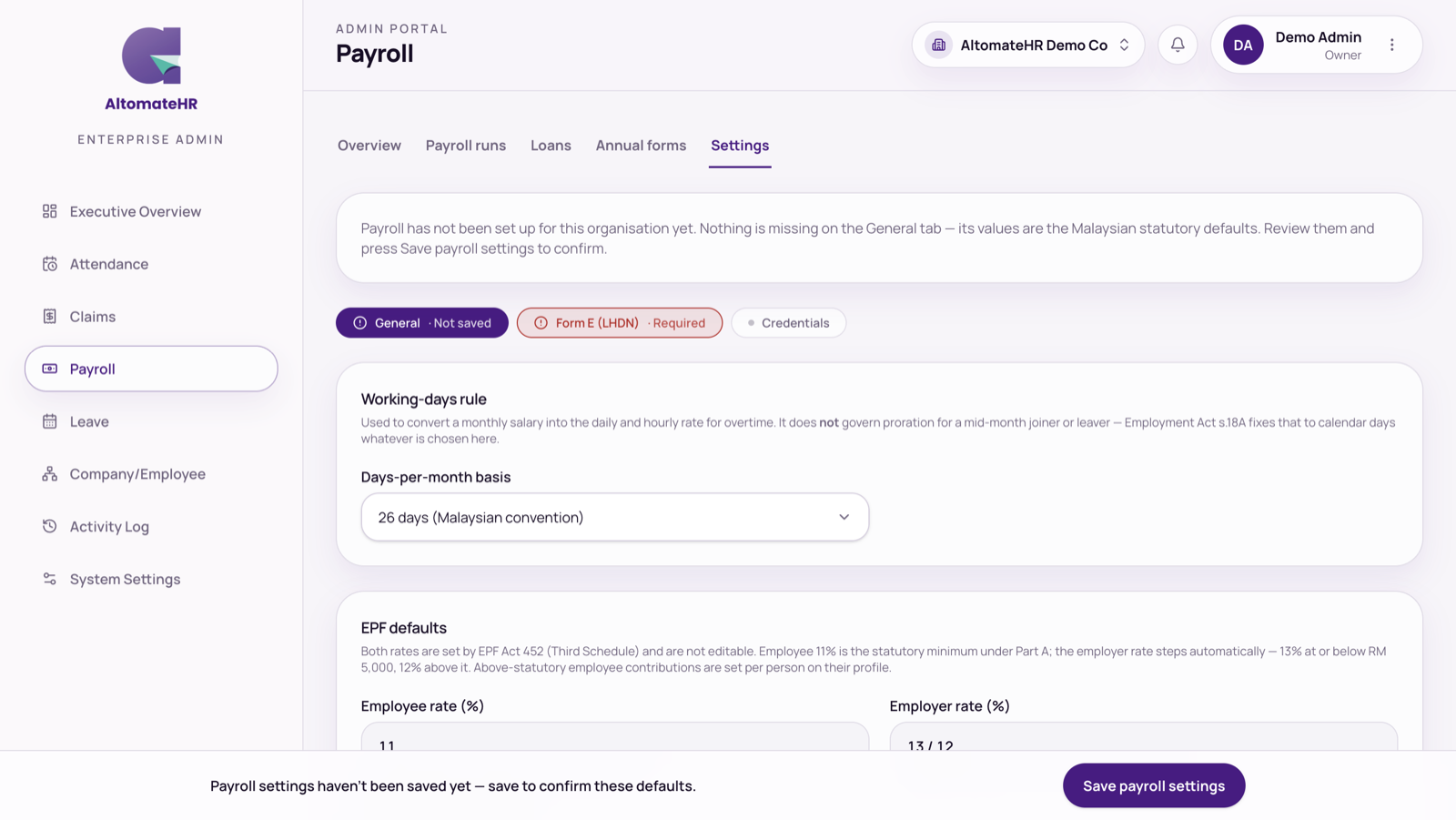
Go to Payroll, then Settings. There are four sections, each marked Completed, Required or Optional so you can see what’s left.
Until someone presses Save payroll settings on the General section, a note says payroll hasn’t been set up yet. The values shown are the Malaysian defaults: review them and save to confirm.
General
- Working-days rule: calendar days in the month, or 26 days.
- EPF defaults and your EPF employer number.
- HRD Corp levy: whether you pay it, the rate, and your HRD Corp employer number.
- PCB compliance: automatically apply the RM350 SOCSO and EIS relief.
- Payroll disbursement bank: Maybank, CIMB, Public Bank or Hong Leong, with the account details. This decides which bank file your pay runs produce. Choose Other bank if you pay salaries another way.
- Xero sync on submit: post the payroll journal to Xero when a run is approved.
Form E (LHDN)
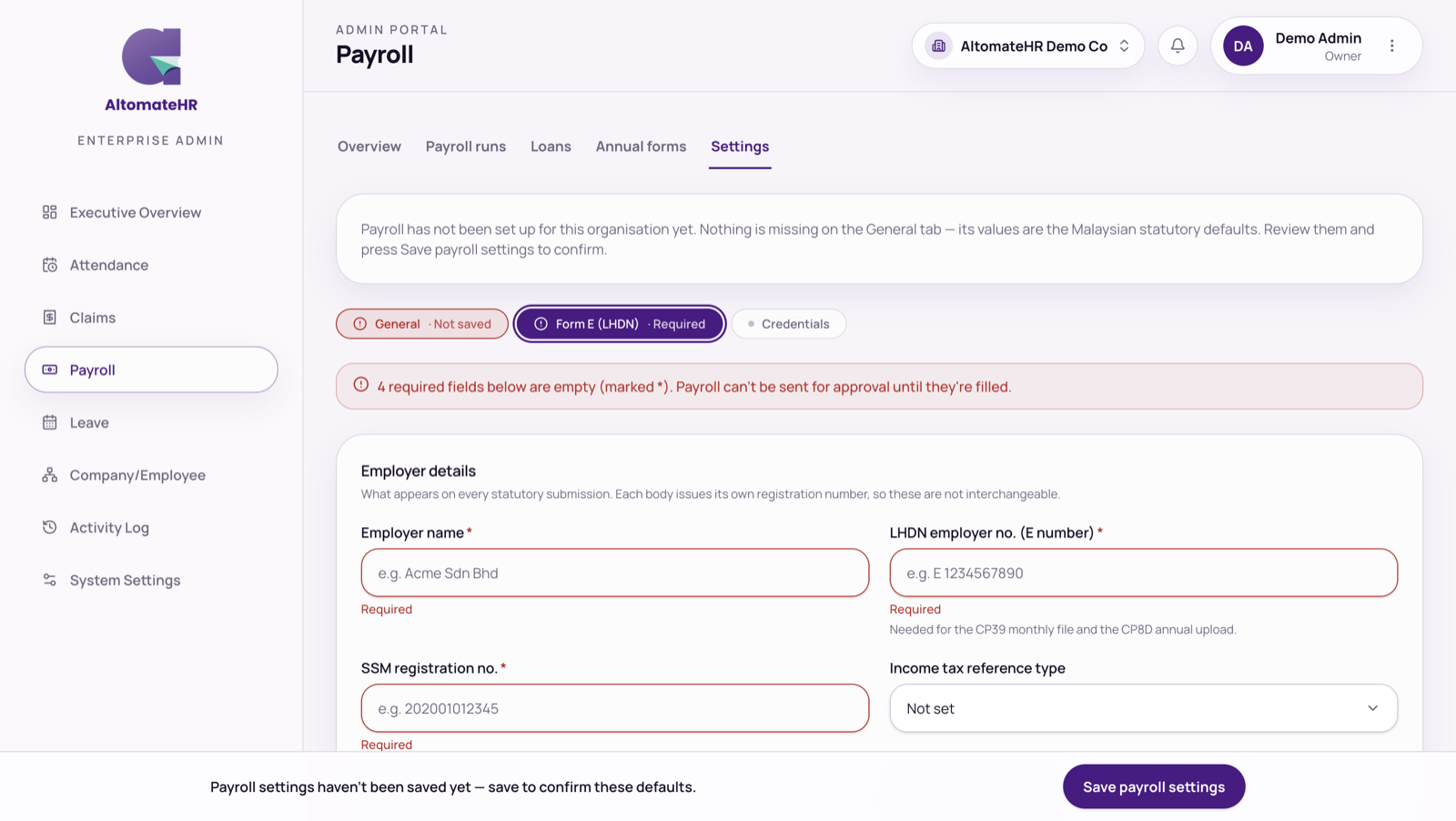
Your employer particulars: employer name, LHDN employer number (E number), SSM registration number, income tax reference, PERKESO employer code, KWSP and HRD Corp numbers, contact details and address, zakat number, employer category and status, and CP8D furnish type. Then the declarant who signs Form E, and your tax agent and firm if you use one.
Fill these in before your first run: Employer name, E number, SSM number and PERKESO code are required. A pay run can’t be sent for approval while any of them is missing. AltomateHR tells you while you’re preparing the run.
Credentials
Store your KWSP i-Akaun, PERKESO ASSIST and LHDN e-PCB logins so whoever runs payroll has them. They’re encrypted, but anyone who can open this page can reveal them, so limit who has access (see How to Add Admins and Control What They Can See).
Xero sync
If Xero is connected, choose how expense lines are grouped, the tracking category for projects, and which Xero accounts each payroll line posts to. See How to Connect AltomateHR to Xero.
Save changes with the Save changes bar at the bottom of the page.


